 Aximo
Aximo en
en Русский
Watermark
Put a text or PNG watermark on incoming photos and video covers — in one of nine positions or tiled, with adjustable opacity.
The watermark is put on photos and video covers before delivery. The video clip itself is never processed.
Watermark
Add Watermark exists for the chat and for a source; the source setting overrides the chat one. There are two kinds of mark — the Text / Image switch under the main toggle. Exactly the selected kind is drawn: an uploaded image does not stop you from switching to text, and vice versa.
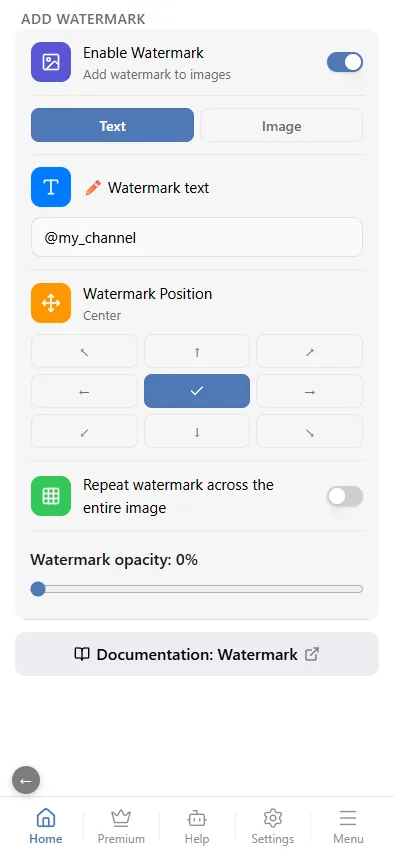
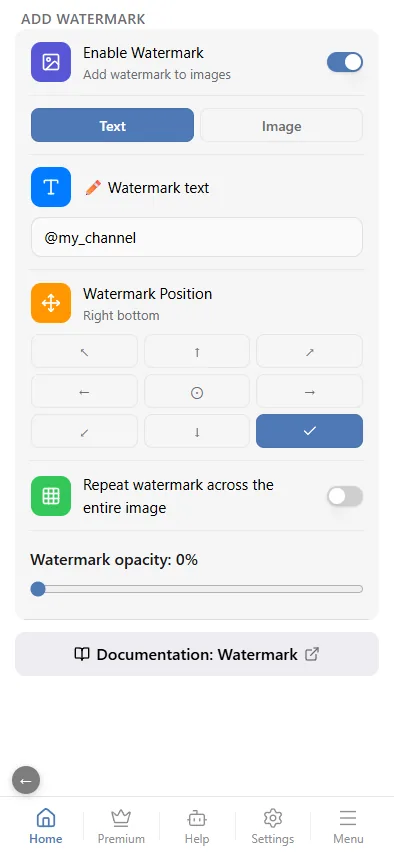
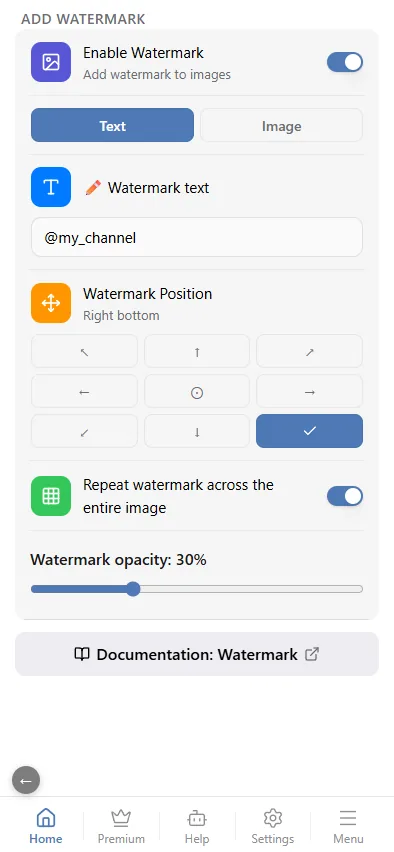
- Switch on Enable Watermark.
- Choose Text and type it in the field, for example
@my_channel. An empty field means no watermark. - Pick the position on the 3×3 grid.
- Or switch on Repeat watermark across the entire image to tile the mark over the whole picture.
- Set the watermark opacity: 0% is a solid mark, the higher the value, the fainter it gets.
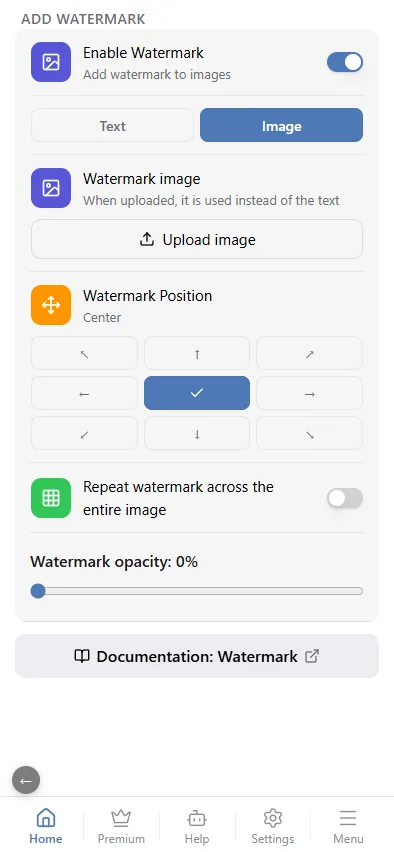
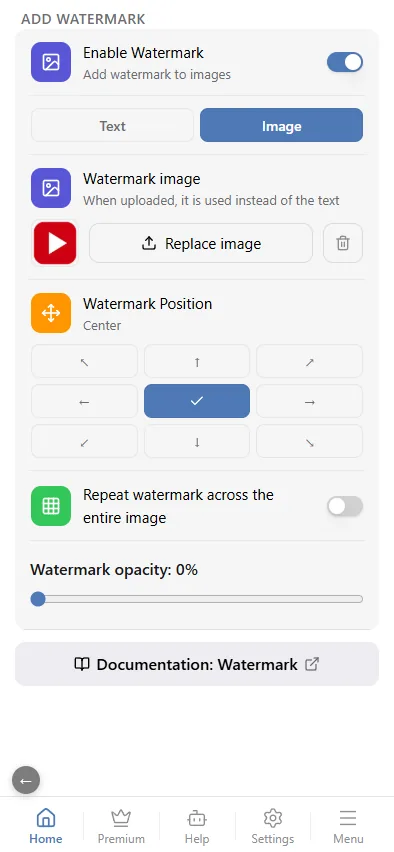
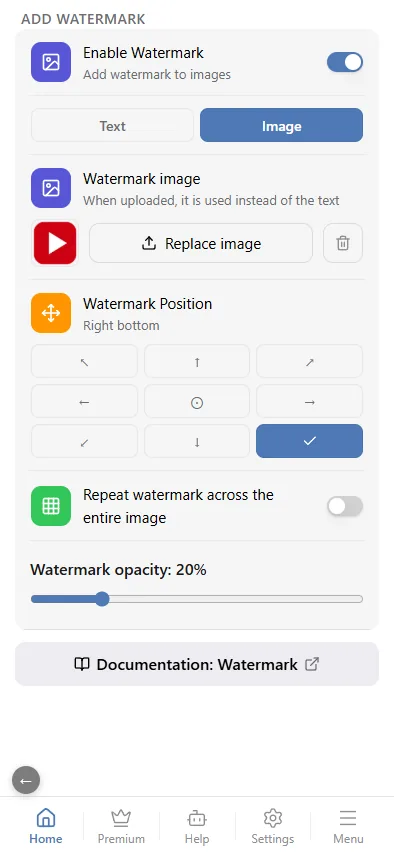
- Switch on Enable Watermark and choose Image.
- Tap Upload image and pick a file — a PNG with a transparent background works best. A preview appears next to the button; Replace image uploads another one, the bin removes it.
- Pick the position on the 3×3 grid, or switch on Repeat watermark across the entire image.
- Set the watermark opacity.
The uploaded image is stored on our side and applied to every photo of the chat or source.
The result is saved at high JPEG quality, so the photo does not come out softened.
Logo removal
Erasing someone else's logo or caption from a source's photos is a separate source setting, see Logo removal. The source's logo is removed first, then your watermark is applied, so your mark is never erased.