 Aximo
Aximo en
en Русский
Import and export
Move sources and settings between chats, back them up, and import an OPML file from Feedly, Inoreader or any other reader in two taps.
OPML import
An OPML file is the standard export format of RSS readers (Feedly, Inoreader, NetNewsWire and others).
File import is in the mini app only: open the chat → Add source → the OPML import block → Pick OPML file (.opml and .xml work). Every feed in the file is validated and added one by one, with progress on screen. The plan's source limit applies: feeds beyond the limit are not added.
The bot chat does not accept OPML files — use the regular add flow there for one or several links.
Exporting and importing sources
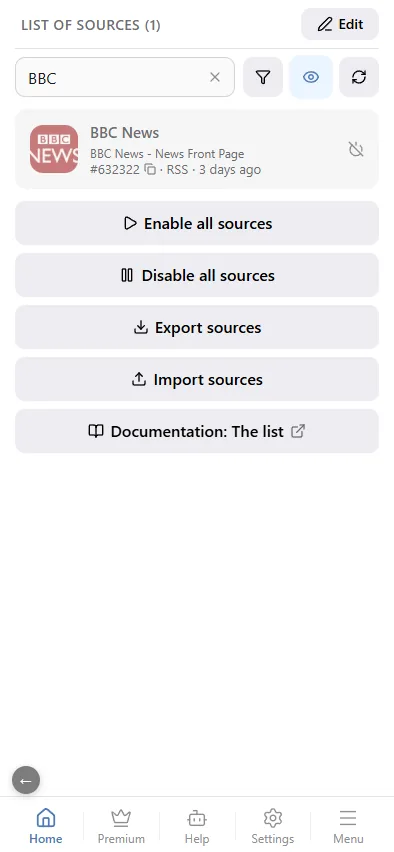
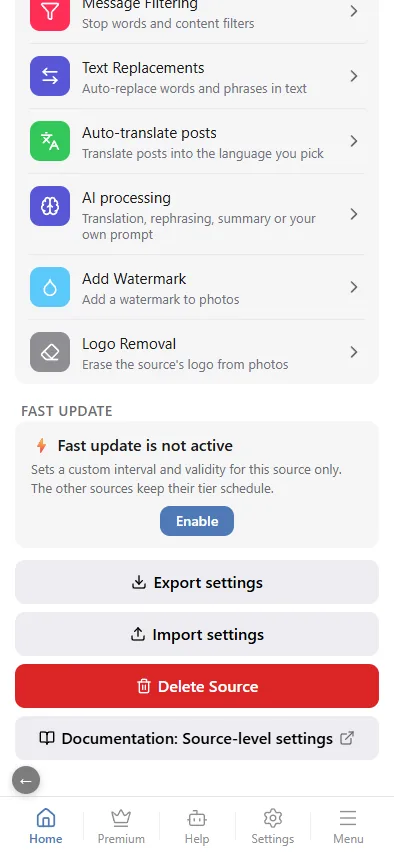
List of Sources → Export sources downloads the list of the current chat as a file. Import sources reads such a file into another chat, or into the same chat after a cleanup. The file carries the source links and their per-source settings.
Exporting and importing settings
Every chat and every source has Export settings and Import settings at the bottom of its screen. The exported file contains the whole pipeline configuration: media types, filters, replacements, template, translation, AI prompts, watermark, delivery mode. Use it to:
- copy a proven configuration to a new channel;
- keep a backup before experimenting;
- share a setup with a colleague who manages another chat.
Importing replaces the settings of the target; nothing is merged.
Copying settings between sources
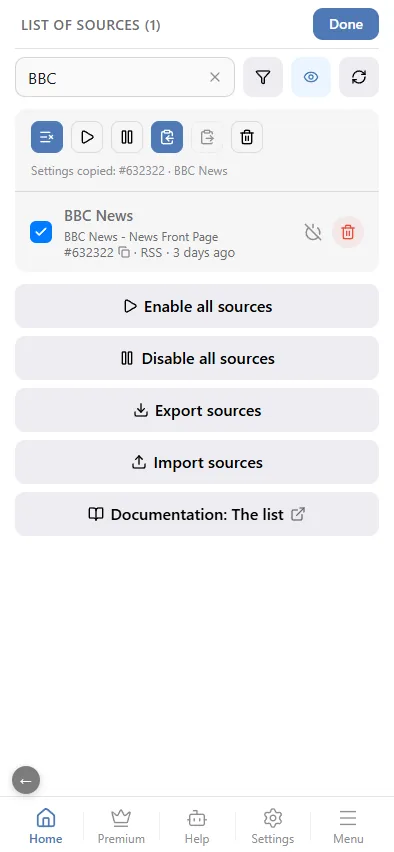
Inside one chat, settings are copied between sources in the source list: tap Edit, tick the source to copy from and tap Copy settings — "Settings copied: …" appears above the list. Then tick the sources that need the same settings and tap Apply settings.