 Aximo
Aximo en
en Русский
Getting started
Add your first source in about a minute: press Start, paste a profile or feed link, then choose where posts go — your DM, a channel or a group.
1. Open the bot
Open @AximoBot — or the same bot under its short name @Aximo — in Telegram and press Start. The bot answers with a short description and a menu. Nothing is created yet: the bot only knows your Telegram user and your interface language.
The first lines are your Telegram ID, your plan and the active-source count. The menu under the reply is the whole bot: Settings (Open in Telegram) and Settings (Open in browser) open the mini app — inside Telegram or in a browser; Add source starts the add flow; My sources lists your subscriptions with the active/total counter, where a source can be switched off, checked or deleted right in the chat (see Managing sources → In the bot); Premium subscription covers plans and payment, see Plan and payment. Below them: the support group, the contact link, the news feed and the language switch.
 Settings (Open in Telegram)
 Settings (Open in browser)
 Add source
 My sources [3/25]
 Premium subscription
 Support group
 Contact us
 News and updates [09/06/2026]
 Change language
2. Add a source
Three ways, one result — the source appears in the chat's list with its own settings:
- In the bot — send it a link and answer two questions: Adding a source → In the bot.
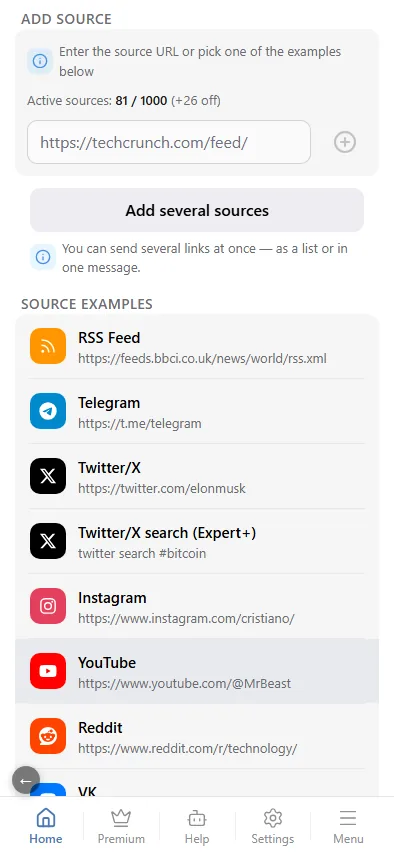
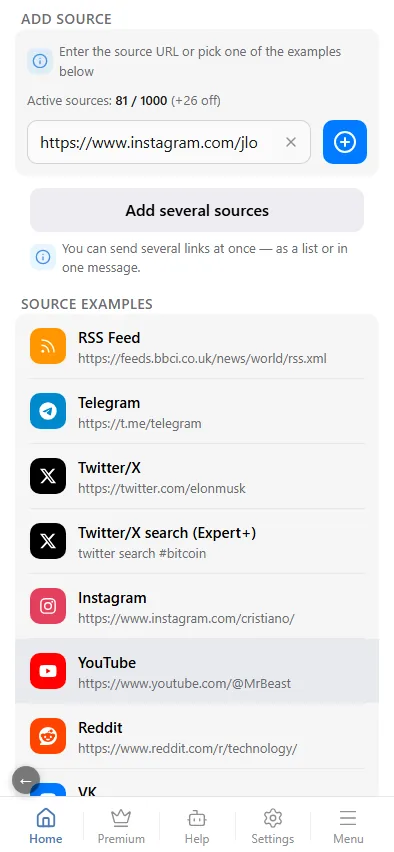
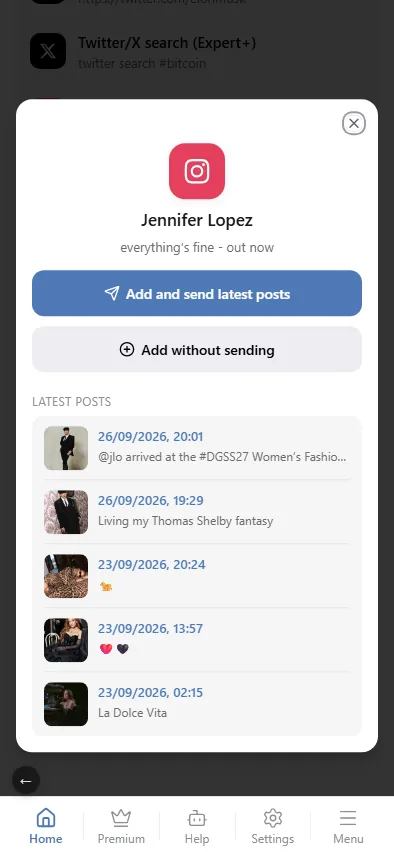
- In the mini app inside Telegram — Add Source on the chat's screen: Adding a source → In the mini app.
- In the mini app on a computer — the same screen in a browser after a one-time sign-in: On a computer, in the browser.
In the bot
Send the bot a link and answer two questions — where to deliver and how to add. The chats already connected are listed right there; Add chat opens the mini app to connect a new channel or group. With Add and send latest posts the first messages follow at once:
Add chat (Open in Telegram) Add chat (Open in browser) Add without sendingIn the mini app
Open the chat, tap Add Source, paste the link and confirm the preview — the source shows up in the list:
3. Set up the source
Settings live on two levels. Chat settings apply to every source delivered into that chat: message content, template, filters, replacements, translation, AI, watermark. Source settings are the same sections for one source, on top of the chat's — set the chat once and override only where a source differs.
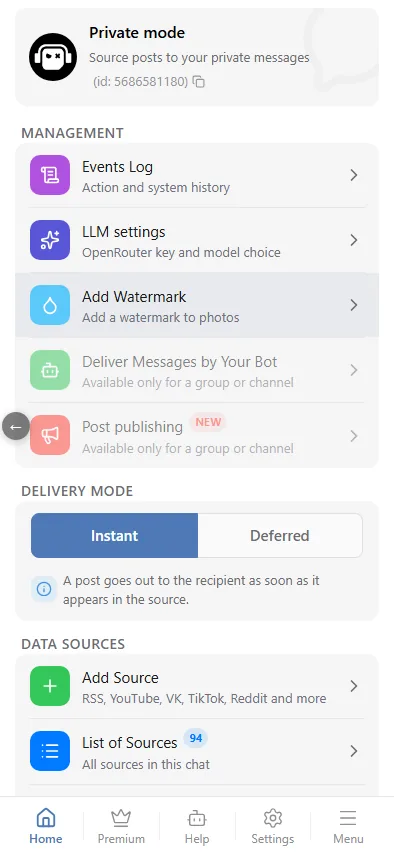
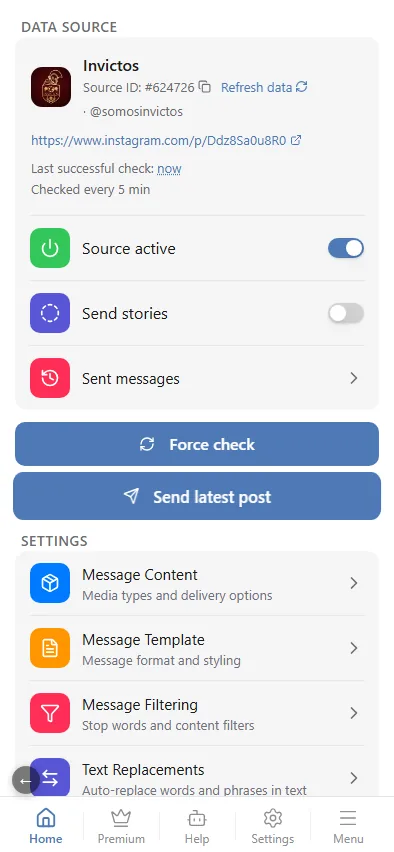
- In the mini app inside Telegram: Chat settings and Source-level settings.
- In the mini app on a computer: the same screens in a browser, see On a computer, in the browser.
4. Where do the posts go?
By default the bot is in private mode: posts arrive in your chat with the bot. To deliver to a channel or a group, connect it with Add chat — see Working modes.
5. The first posts
A new source is checked on your plan's schedule; if you chose Add and send latest posts, the first messages arrive within a minute. Force check and Send latest post are in the source card — see Fast check and Managing sources.
Bot commands
Almost everything is done with buttons and links, but the bot also understands a few commands:
/start(also/help) — the menu shown above./add— the bot asks for a link and lists example links for every platform;/add <link>goes straight to the preview.- A link sent as a plain message — adding a source; several links in one message — adding several sources at once.
/language— the interface language./miniapp— which domain the mini app opens on, and a button to switch it if it does not open./emoji <emoji>— the id of a premium emoji, for templates and buttons, see Message editor.
Something did not arrive?
- Open the source card: differing last check and last successful check mean the source is failing, and Messages from sources shows why each post was filtered or failed — see Managing sources.
- The FAQ covers the common cases; the support group @madbots_talk covers the rest.