 Aximo
Aximo en
en Русский
Managing sources
The list of sources, the source card, force checks, history and bulk actions.
The list
List of Sources in the chat settings shows every source of the chat: platform icon, name, id, type and the time of the last check. Filter the list by name, by platform type, or hide inactive sources.
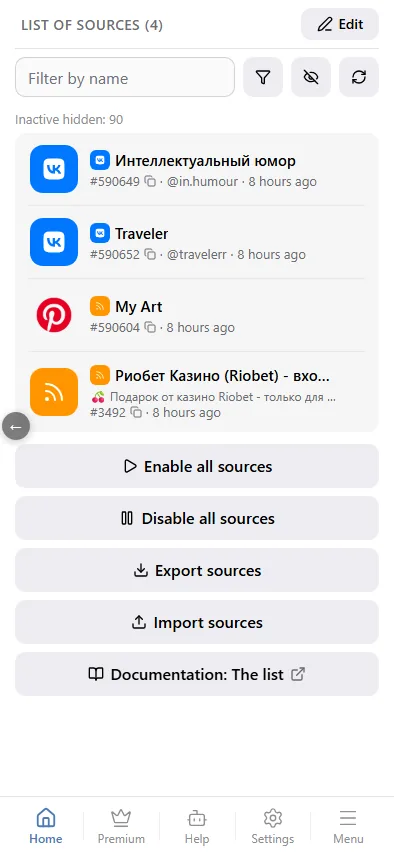
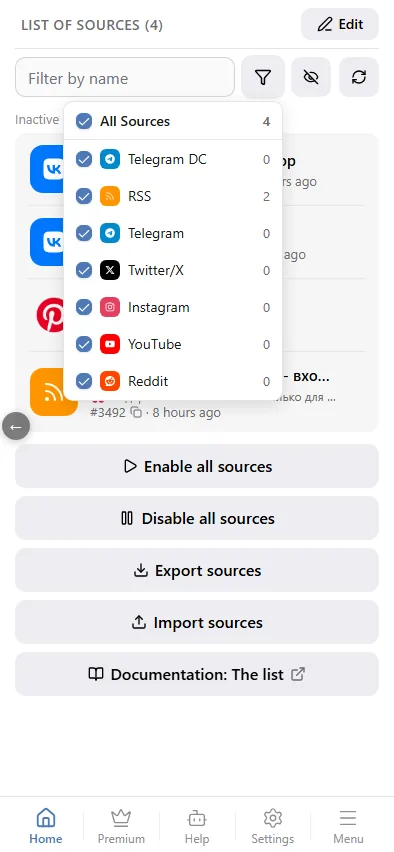
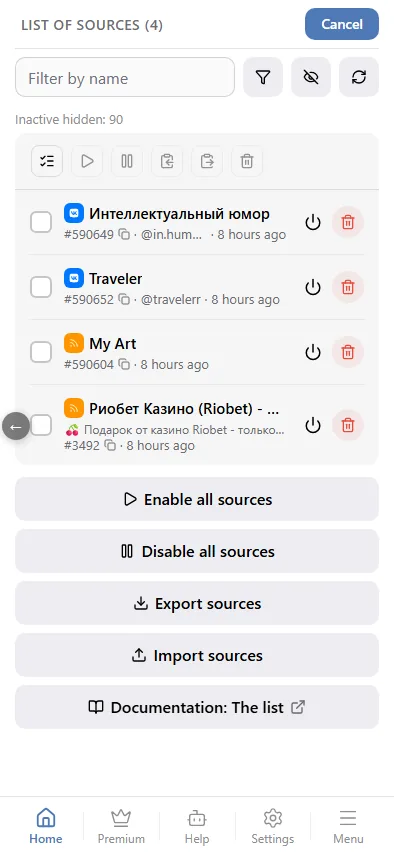
Edit switches to selection mode. Select sources and apply an action to all of them at once: enable, disable, copy settings from one source, apply the copied settings to the selected ones, or delete. At the bottom of the list: enable or disable all sources, export the list, import a list. In edit mode the source avatars are hidden — the row needs the space for the checkbox and the two action icons instead.
A row shows an icon only when something needs attention — the source is off, failing, or being checked right now; a healthy, active, recently-checked source shows none. A source can be off for two reasons: you switched it off, or the plan limit no longer covers it. The second case appears after a plan downgrade; the sources beyond the limit stay in the list and switch back on when the limit allows. Tap the row to open the source card, where Source active turns delivery on or off.
In the bot: My sources
The same list is also in the bot itself, no mini app needed. Press My sources in the bot's menu and pick whose sources to show: your Private messages, a group or a channel — only chats with at least one subscription are listed.
Each source is a block of its own: the platform icon, the name (a link to the source itself) and a source checked: line with the time of the last check. Under it, a row of buttons:
- On / Off — switch delivery from the source on or off without deleting it.
- 🔄 — queue the source for a check: it is polled within the next minute. Press it too often and the bot asks you to retry in a few seconds.
- 🗑 — delete the source. The bot asks for confirmation first.
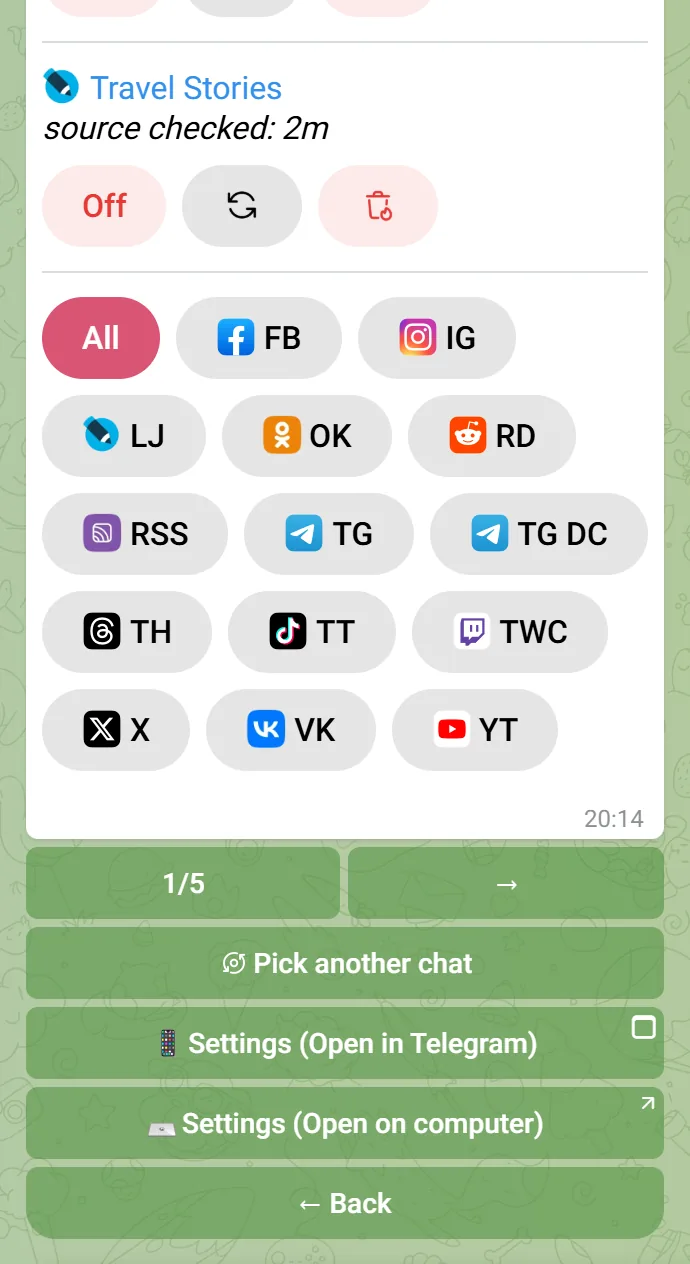
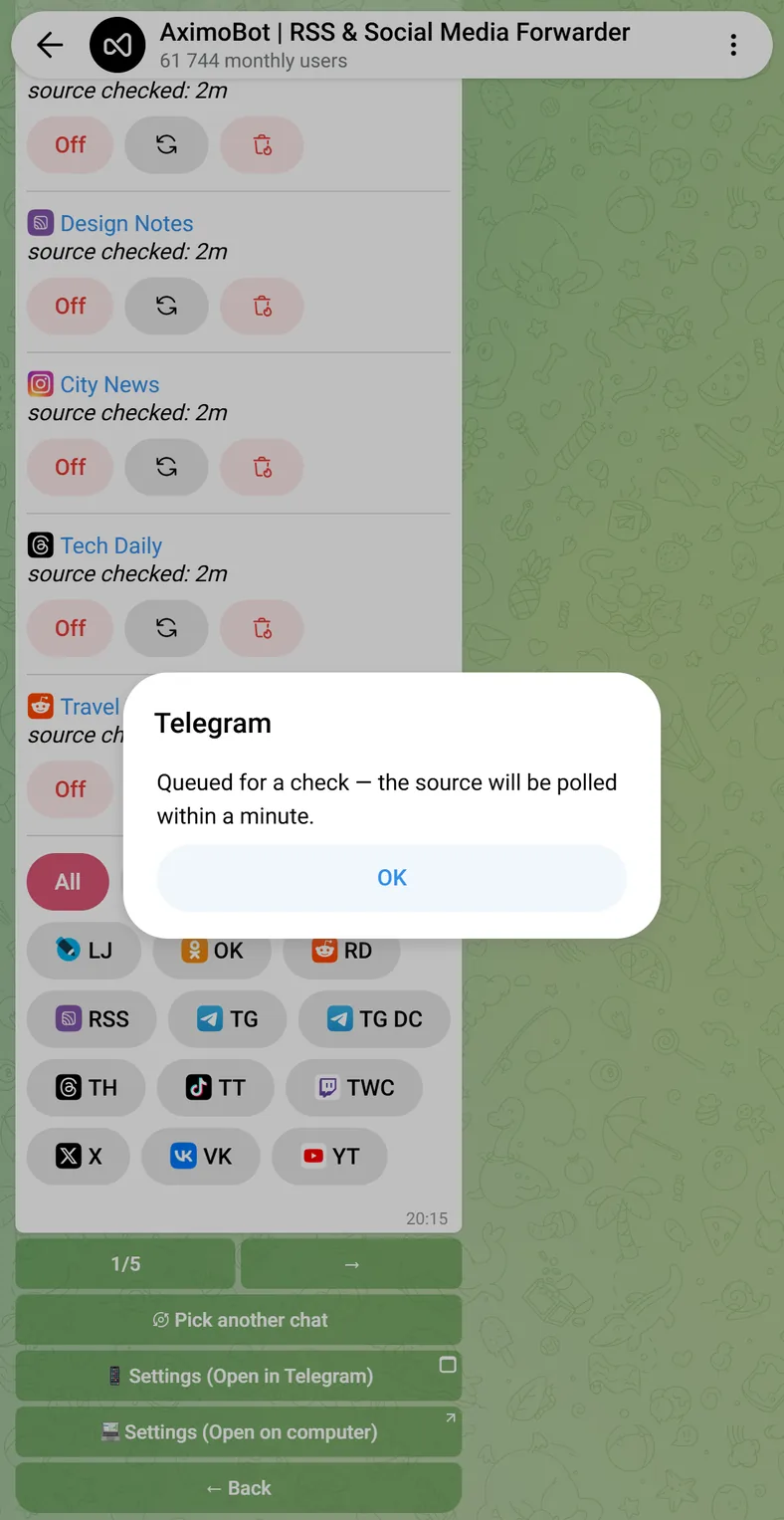
Under the list: a row that filters by platform type (All or individual platforms) and the pages, 20 sources per page. Pick another chat takes you back to the chat choice. Everything else — settings, the log, bulk actions — is in the mini app.
The source card
Tap a source to open its card.
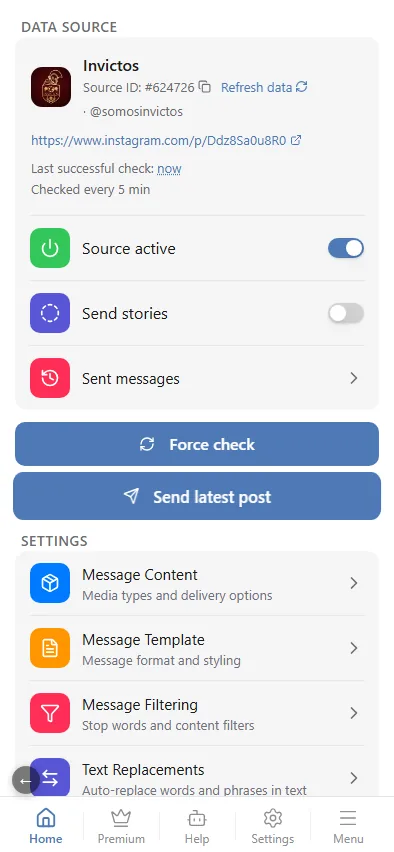
Data source shows the id, the source URL, the URL of the last post and two timestamps: the last check and the last successful check. When they differ, the source has been failing since the second one; tap the timestamp for the check history with the last five results and their reasons.
Refresh source info 🔄 next to the source id asks the source for its name, description and avatar again. If a channel was renamed, the bot picks up the new name and shows what it changed from and to.
Switches in the card:
- Source active — pause or resume delivery without deleting the source.
- Platform switches — X, VK, YouTube and Instagram sources add their own: replies and reposts, community posts and Shorts, stories. See Platform settings.
- Forward mode — sources read through a direct connection of a Telegram account (connected earlier; new connections are made in @RoutifyBot): forward the original message or resend it as the bot's own.
Buttons:
- Sent messages — the delivery log of this source.
- Force check — check the source now, ahead of the schedule.
- Send latest post — deliver the newest post again, useful after changing the template or filters. It ignores the delivery window and the deferred-posting window; content filters still apply.
- Delete Source — at the bottom, in red. Asks for confirmation, then removes the source for good and returns you to the list.
Source-level settings
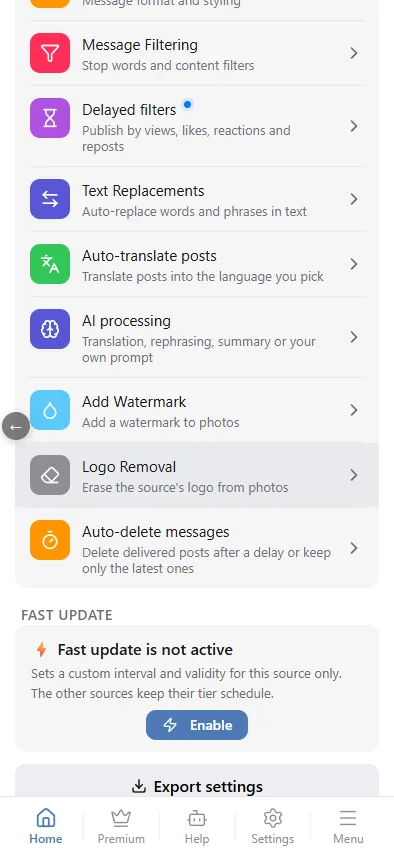
The Settings block repeats the pipeline sections of the chat and adds a few of its own. A source-level section either replaces the chat section or is merged with it; the choice is shown at the top of the filters and replacements sections as Mode with two options:
- Replace — the source's settings replace the chat's settings. You can switch off here what is on at chat level.
- Add to — the source's settings are added to the chat's settings. In this mode a chat-level toggle or rule cannot be switched off from the source.
A blue dot next to a section name in a settings menu — the chat's or the source's — means something in that section is already configured or on: filters, replacements, AI, translation and so on. No need to open every section to check.
| Section | Scope |
|---|---|
| Message content | chat and source |
| Message template | chat and source |
| Message filtering | chat and source |
| Delayed filters | source |
| Text replacements | chat and source |
| Auto-translate posts | source |
| AI processing | chat and source |
| Watermark | chat and source |
| Logo removal | source |
| Auto-delete messages | chat and source |
| Live streams & premieres | chat |
| Fast update | source, paid add-on |
Every section has a reset button at the bottom — Reset values, or Reset to the chat's settings in Message content and Auto-delete: the source goes back to the chat's settings for that section.
The delivery log
Messages from sources in the chat settings and Sent messages in a source card show what happened to every post: delivered, filtered and by what, or failed and why — with the delivered media and the full processing trace. All of it, including the filters by outcome and filter kind, is described in The delivery log.
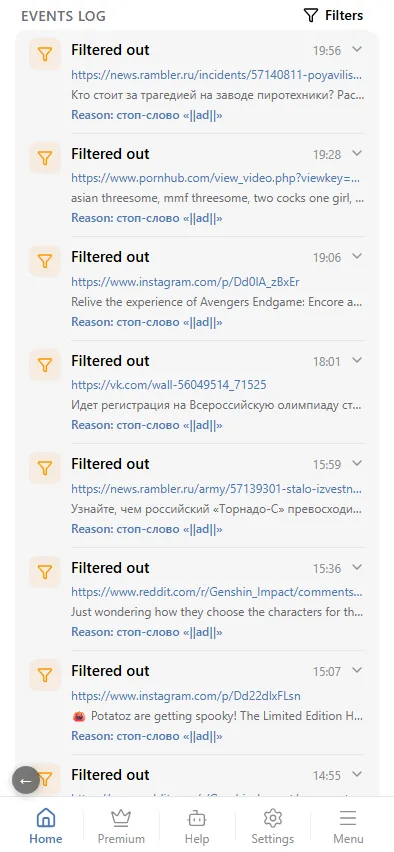
The events log is different: it records a source's own lifecycle — added, removed, imported, rejected on adding, or switched off automatically and why. It also lists the posts that did not reach the chat, with the reason — filtered out, a clone of an already published post or filtered out by AI — and an AI processing group, with events such as "OpenRouter key is invalid".
Sources that stop responding
A source that fails ten checks in a row is switched off globally (not per chat); the events log gets one entry, at the moment it is switched off. Telegram and VK sources are never switched off this way. Its card shows a warning that our system flagged it as invalid — the source stays in your list and your subscription stays on. The bot keeps re-checking a switched-off source by itself, up to once a day and only while it still has subscribers, and turns it back on the moment a check succeeds; you don't have to wait for that — Source active in the source card re-enables it manually at any time. If it keeps failing, the check history tells why.