 Aximo
Aximo en
en Русский
The mini app
The control panel that opens from the bot: chats and plan limits, the source list, the delivery log, settings and plans — in Telegram or in a browser.
The mini app is a Telegram web app: it opens inside Telegram from the bot's menu button or from Settings (Open in Telegram) under /start; Settings (Open in browser) opens the same app in a browser. For users with the Russian interface it opens on the madbots.ru mirror by default, to avoid blocks; if the mirror does not open, send the bot /miniapp — it shows the current domain and switches it to the other one (madbots.ru ↔ madbots.dev).
It is where every source and every setting is managed.
Home
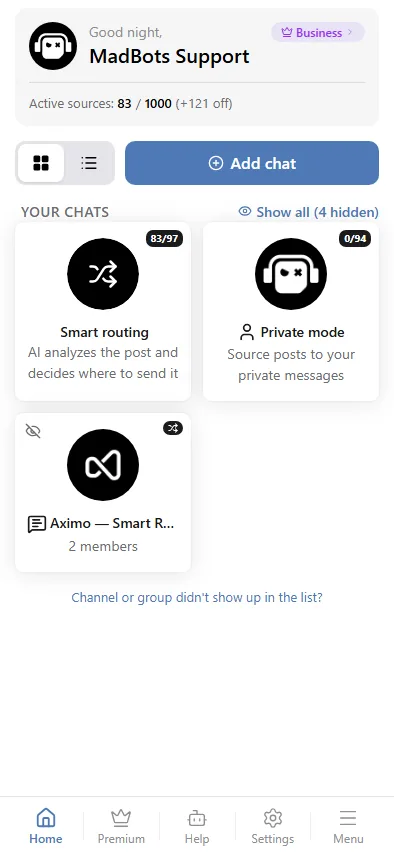
The home screen shows your name and plan, the number of active sources against the plan limit, and the list of chats the bot delivers to. On the Expert plan and above a Smart routing tile sits above the chats — one AI-sorted stream of sources that fans out to several chats by category, see Smart routing. The Add chat button connects a new channel or group.
Chat settings
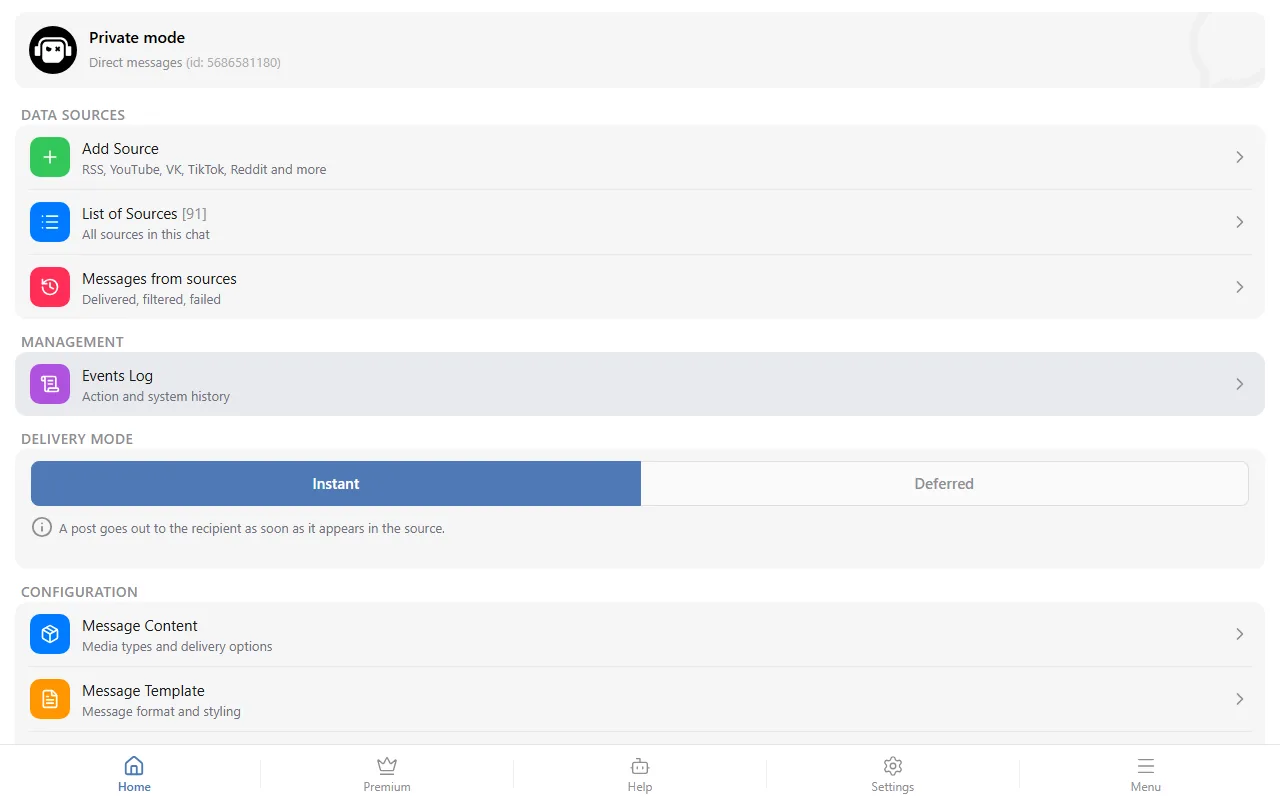
Tap a chat card to open its settings. The screen is organised in four blocks, in this order:
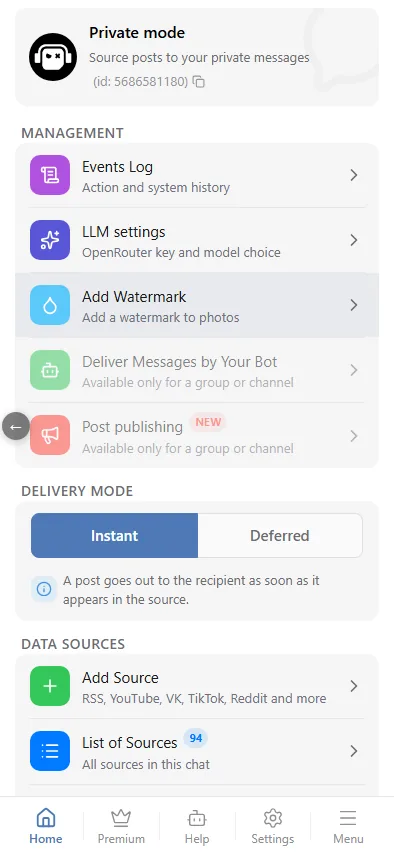
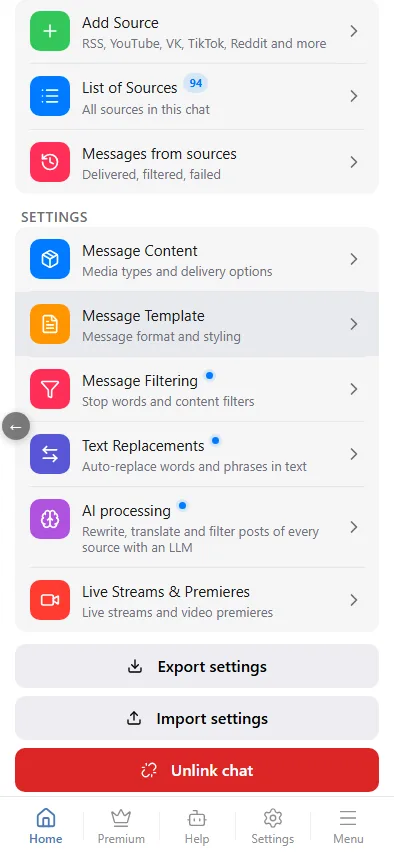
- Management — the Team for channels and groups (other Telegram users who may manage this chat), the Events log (what happened and when), LLM settings, Add Watermark and Deliver Messages by Your Bot, and, last, Post publishing (your own post by hand) and Schedule and queue — the calendar and list of everything waiting to go out; that row shows up only when the queue is not empty, and it carries a counter.
- Delivery mode — a switch between Instant and Deferred. Deferred (Expert and above) reveals the Deferred posting settings row; the posts awaiting a decision live not there but in Schedule and queue.
- Data sources — Add source, the list of sources with a counter, and Messages from sources: the delivery log with delivered, filtered and failed posts.
- Settings — the pipeline sections: Message content, Message template, Message filtering, Text replacements, AI processing (for every source of the chat), Live streams & premieres and, last, Auto-delete messages. In a group with topics the block starts with the Forum Topic ID field, see Working modes.
At the bottom: Export settings / Import settings (see Import and export), owner-only Unlink chat (see Working modes) and, for channels and groups, Refresh admins, which re-syncs the team from the chat's current admin list.
A blue dot next to a section name in Settings means something in that section is configured or on — filters, replacements, AI, translation. The sections in a source's settings are marked the same way.
Events log
The Events log shows what happened in the chat and when: a source's own lifecycle — added, removed, imported, rejected on adding, or switched off automatically and why — and the posts that did not reach the chat, with the reason: filtered out (and by which rule), a clone of an already published post (with the similarity percentage) or filtered out by AI. It also records when a clone updated the published original — see Similar posts → Update the original from a clone.
Tap an event that has a post and its card opens: the media preview, the post text, the reason and the processing trace — the steps the post went through — with links to the post at the source and to the published copy.
Source settings
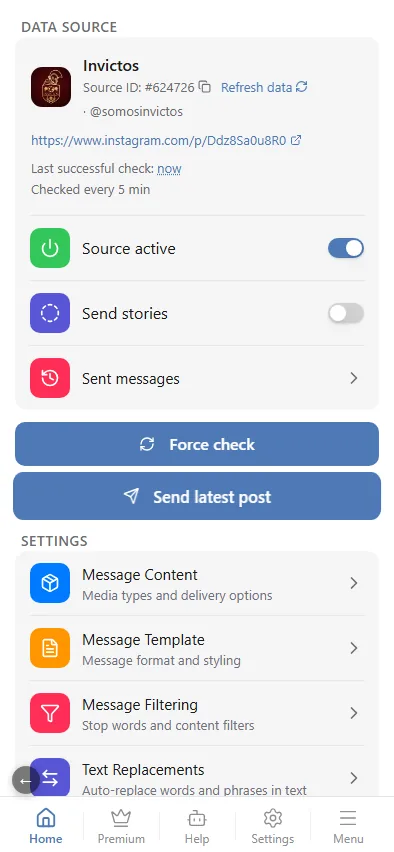
Every source has the same pipeline sections plus a few of its own: translation, AI prompts, logo removal and the fast check add-on. A source-level setting either overrides the chat setting or merges with it, depending on the section. See Managing sources.
Tabs
The bottom bar has four tabs; while a chat is open, a fifth one — Premium — appears second, because the plan belongs to the chat.
- Home — chats and sources.
- Premium — plans with prices in your currency, the trial and the current subscription. See Plans.
- Help — the help pages and the AI assistant that answers from the documentation and takes you to the right section; for a human, the support group. See Help.
- Settings — Interface Language, Timezone, Silent Mode and Dark Theme.
- Menu — the welcome message, news, the partner programme, advertising, support contacts and our other bots.
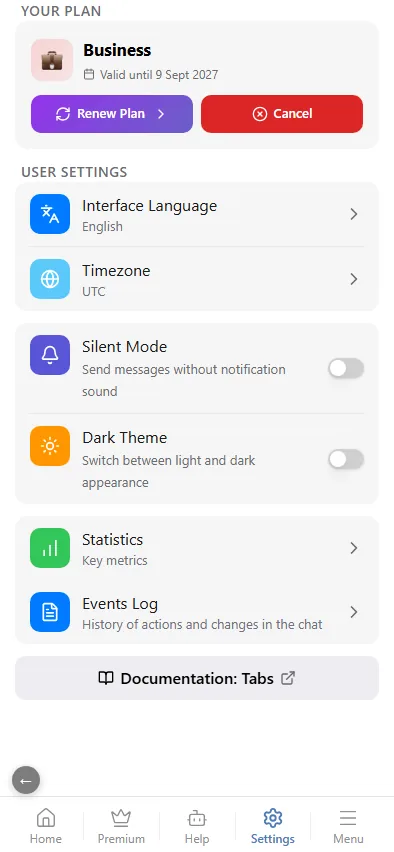
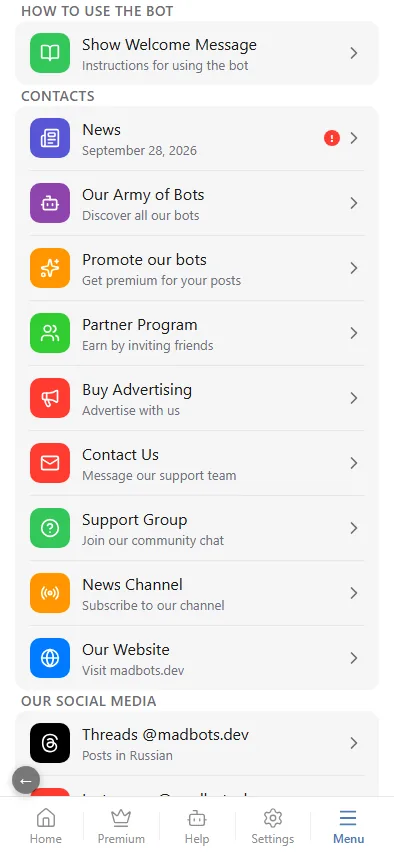
Plan and payment
Plans open on the Premium tab or from Premium subscription in the bot's menu. Each billing term carries a short hint: "Lowest price per month", "Savings with flexibility", "Monthly, no commitment".
Payment methods: Card (RUB), Card (USD), Telegram Stars and Cryptocurrency — USDT, ETH, BTC, SOL, TRX, GRAM.
- Auto-renewal. When you pay by card or with Stars the plan renews by itself. The Turn off auto-renewal / Turn on auto-renewal button is in the bot under your current subscription and in the mini app next to cancelling the subscription. It is not a cancellation: when you turn it off the bot tells you the date your access lasts until; when you turn it on, the date of the next charge.
- Moving to a lower plan is only possible after the paid period ends: until then, picking a cheaper plan shows the date from which the switch becomes available, and in the bot the payment buttons give way to 🚫 Downgrade not available.
Language and time zone
The mini app follows the language chosen with the language button in the bot's menu. The time zone matters for the delivery window and the schedules: set it once in Settings → Timezone.
On a computer, in the browser
The same app works outside Telegram — on a computer, in an ordinary browser. The bot's menu has a Settings (Open in browser) button next to the Telegram one; it opens the web version, which asks you to sign in with Telegram once (a confirmation in your Telegram app, no password) and then remembers you.
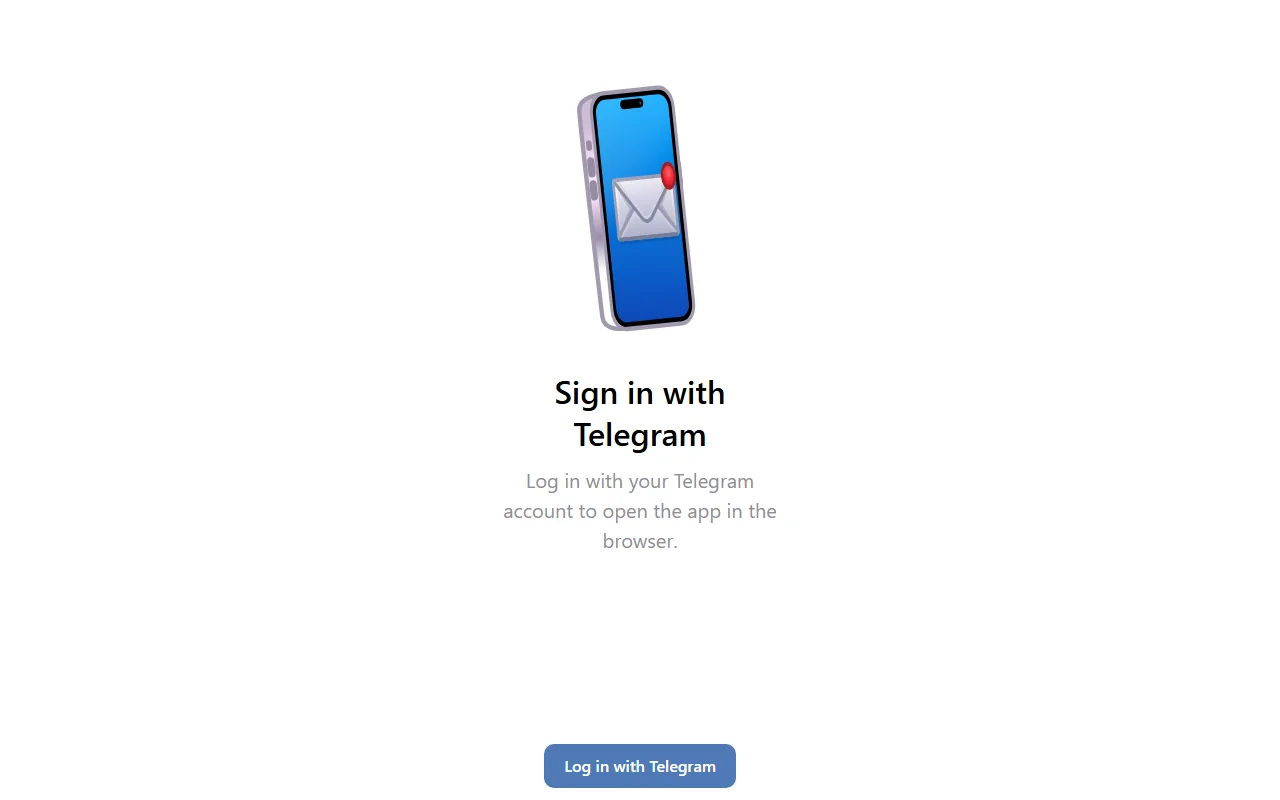
After signing in you get the same home screen, chats, sources and settings, laid out for a wide window; the bot's own links stay in the header.
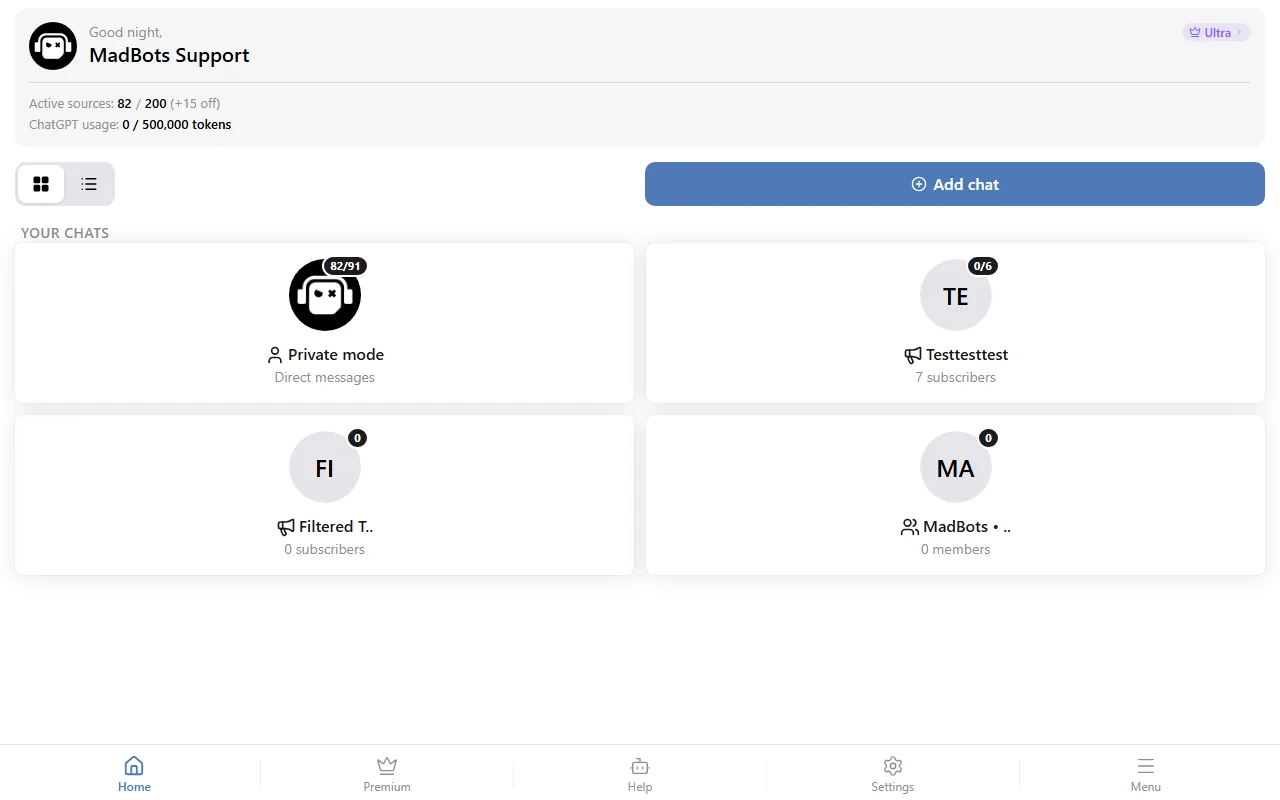
Two things are Telegram-only: the payment sheet (buy plans in the Telegram app) and adding a chat — in the browser Add chat shows instructions instead of Telegram's picker, see Working modes.