 Aximo
Aximo en
en Русский
Message template
Decide how a delivered post looks: title, source, header, footer, buttons.
Message Template controls the layout of every message the chat receives. It exists for the chat and for every source.
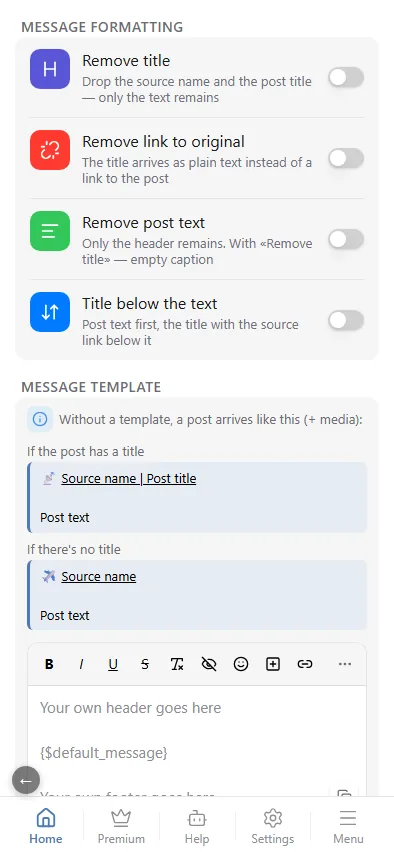
Message formatting
Four toggles at the top of the screen, above the template editor. They are independent of it — they apply to every post right away, even while the editor itself is locked:
- Remove title — drop the source name and the post title; only the text remains.
- Remove link to original — in the base message the title arrives as bold text instead of a link to the post. It does not touch your own template: there
{$media_title}is always plain text, and you add the link yourself —<a href="{$media_url}">{$media_title}</a>. - Remove post text — only the header remains; together with "Remove title" the caption is empty and only the media arrives.
- Title below the text — swap the two halves of the message: the post text first, the title with the link to the original underneath. Useful when the title repeats the first line of the text and gets in the way of the chat-list preview.
The base message
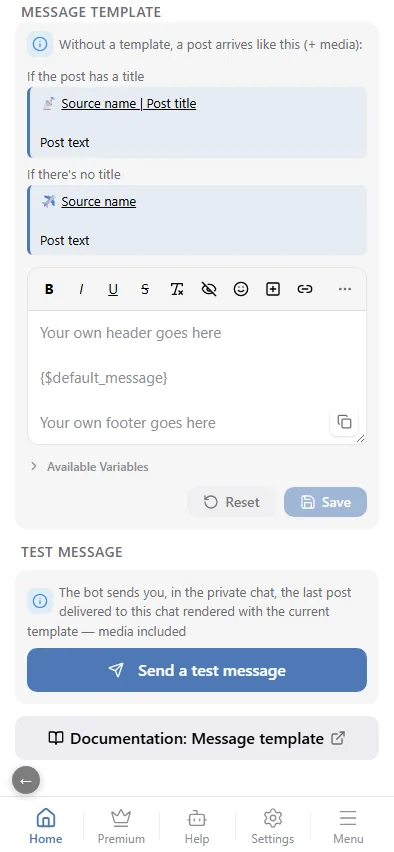
Without a template a post arrives as the base message: the source name with its platform emoji, the post title as a link (when the post has one), and the text. The section shows exactly how the base message looks for a titled and an untitled post, so you can decide whether you need a template at all. The example updates live as you flip the formatting toggles above, "Title below the text" included.
Your own template
The editor starts with a single line, {$default_message}, which stands for the base message. Type your header above it and your footer below, or replace it entirely with the variables:
| Variable | Meaning |
|---|---|
{$default_message} | the whole base message |
{$source_emoji} | the platform icon of the source |
{$source_title} | the source name |
{$source_url} | the link to the source |
{$source_type} | the platform name |
{$media_title} | the post title |
{$media_url} | the direct link to the post |
{$media_description} | the post text |
Formatting is Telegram HTML: <b>, <i>, <u>, <s>, <code>, <a href="…">, <tg-spoiler>. The toolbar inserts them; all of its tools, premium emoji (<tg-emoji emoji-id="…">😀</tg-emoji>) included, are described in Message editor.
Example of a channel template:
{$source_emoji} <b>{$source_title}</b>

{$media_description}

<a href="{$media_url}">Original</a> · @mychannel
Reset and Save sit at the bottom of the editor, with a "You have unsaved changes" hint once you start typing.
To check the template before saving it, send a test message.
Buttons
Inline buttons under the message are added in the same editor with Add button: a link, a title, and optionally a premium emoji. Telegram does not allow buttons under media groups (albums), so the buttons appear under single-media and text posts only.
Test message
At the bottom of the screen — Send a test message: the bot takes the last post delivered to this chat, lays it out with the template as it is in the editor right now (even unsaved) and sends it to you in private messages, media included. You see the result before your subscribers do, without waiting for a new post; in a source's settings the test takes that source's last post. If nothing has been delivered to the chat yet, there is nothing to test with — the bot says so.
Length
Telegram limits a text message to 4096 characters and a media caption to 1024. Longer posts are split into several messages or truncated; the behaviour is chosen in the mini app under Display options of the chat or source.