 Aximo
Aximo en
en Русский
AI processing
Summaries, rewrites, hashtags, ad tagging and your own prompts, run on every post before delivery — and your own OpenRouter key.
AI processing rewrites or marks a post with a language model before it reaches the chat. It is set for the whole chat — AI processing in the chat's Settings block — or for one source, in its card. A source with no AI settings of its own follows the chat's; once a source has its own, they take precedence for that source. Available on the Expert plan and above, with the platform paying for the models — there is no token limit. With your own OpenRouter key, requests go through your key instead.
AI runs after replacements and translation, and "After AI" filter rules run right after it; the full order is in A post's path.
Prompts
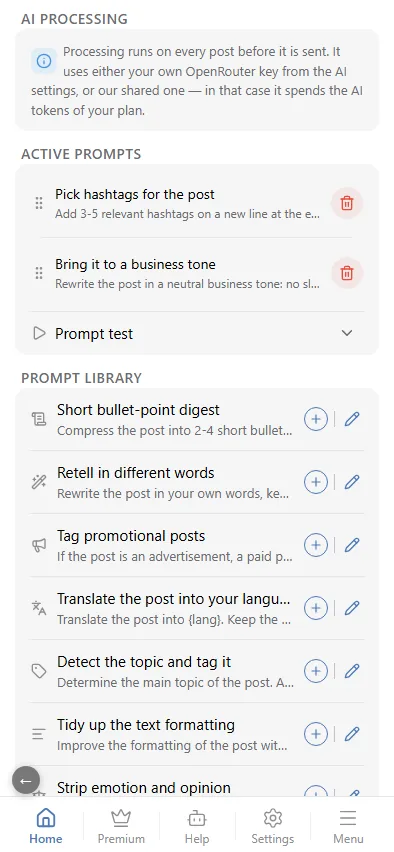
Open AI processing in the chat settings (every source of the chat) or in a source card (that source only) — it is the same screen. It has two lists — Active prompts and Prompt library — and Prompt test under them.
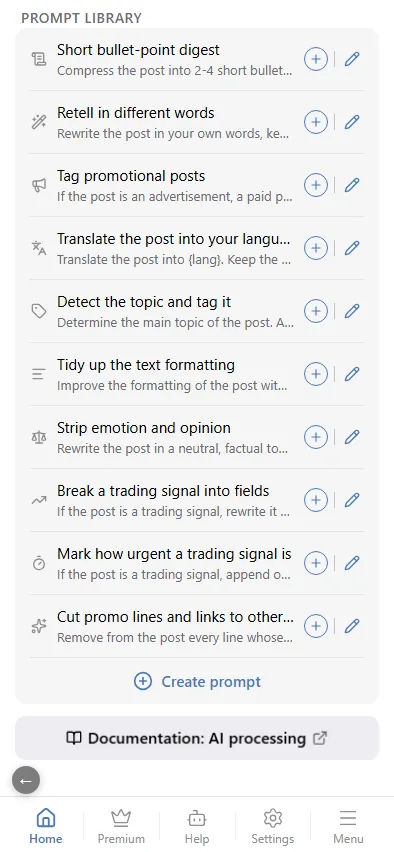
Prompt library
Ready-made prompts and the ones you wrote, shown in your interface language. Tap a prompt to move it to the active list; the pencil edits a prompt (editing a ready-made one saves your own copy — its name starts with "[Copy]" to tell it from the original), the bin deletes your own.
Ready-made prompts include: Translate, Detect the topic and tag it, Pick hashtags, Short bullet-point digest, Retell in different words, Bring it to a business tone, Tag promotional posts, Cut promo lines and links to other channels, Tidy up the text formatting, Strip emotion and opinion, Break a trading signal into fields, Mark how urgent a trading signal is.
Active prompts
What runs on every post of the chat or of the source, top to bottom. Drag by the handle to reorder, or tap a row to edit it; the bin turns a prompt off, back into the library.
All active prompts are combined into one request per post. Every library prompt runs on any post, however short. Several ready-made prompts only act on a matching post and otherwise say to leave it unchanged (tagging ads, breaking down a trading signal) — that clause only means that one prompt changes nothing; the other active prompts still apply on the same pass.
Your own prompts
Your own prompt is free text: describe what to do with the post, in any language. A prompt you write always rewrites the text — there is no kind picker when creating one. A new prompt is saved already switched on.
Your own prompt can also filter posts by meaning: it appends a marker, and a filter rule catches it — see AI filters.
Prompt test
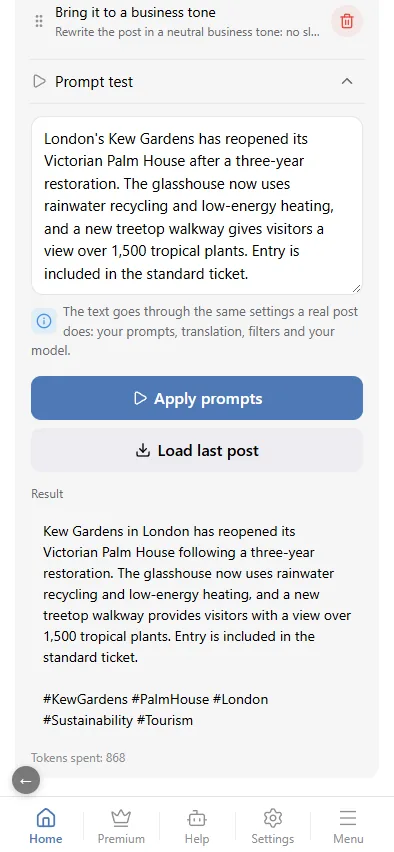
Under the active list — Prompt test: paste a post's text or tap Load last post, then Apply prompts. The text goes through the same settings a real post does: your prompts, translation, filters and your model. Back comes the result, the tokens spent and, if a filter prompt would have dropped the post, the note "This post would be dropped by the filter". With no active prompt the text comes back unchanged.
YouTube videos
YouTube sources have a Video subtitles to AI switch on the AI processing screen (off by default). Turn it on and the video's transcript is added to the model's context: the summary and your prompts take into account what is said in the video, not only the title and description. The transcript itself does not go into the post text — it is reference material for the model only.
AI filters
Dropping ads and off-topic posts with the model is described in AI filters: a prompt marks the post, a filter rule at the "After AI" stage drops it.
Your own OpenRouter key
LLM settings in the chat settings decide which model does the work and who pays for it.
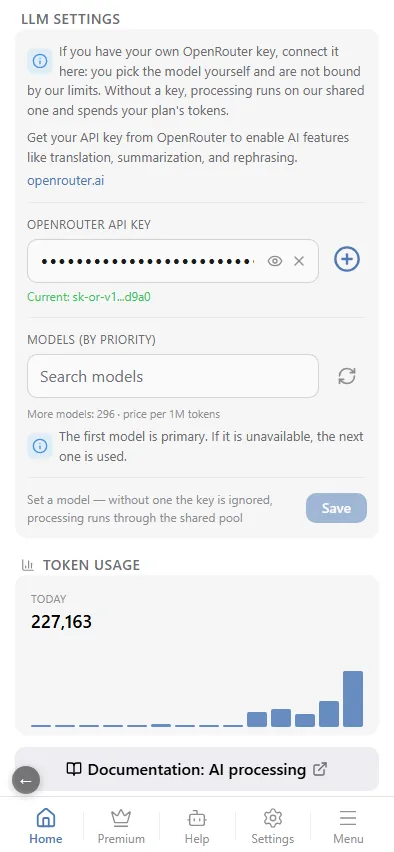
- Without a key the bot uses its shared OpenRouter account and a model chosen by us, paid for by the platform. The usage is shown on the home screen and in this section.
- With your own OpenRouter key you pick the models yourself and pay OpenRouter directly — full independence from the shared pool.
The key applies to the whole chat: every source of this chat with AI processing enabled uses your models.
Where to get a key
- Sign up at openrouter.ai and top up the balance.
- Under Keys create a key — it starts with
sk-or-v1-…. - Copy it: the full key is shown only once.
Connecting it and picking models
- Open the chat in the mini app → LLM settings.
- Paste the key into OpenRouter API key and tap Save.
- Pick the models: the first one is primary, the next ones are fallbacks if it is unavailable. The list shows 270+ models with their price per million tokens and has a search box.
A key can be saved with no model picked — Save is not blocked; a grey hint just reminds you that without a model the key is ignored and processing runs through the shared pool. Your chosen model only takes effect together with your own key.
If the key is rejected
When OpenRouter answers 401/403, the bot clears the key, falls back to the shared pool, logs an "OpenRouter key is invalid" entry in the events log and messages the chat owner. Create a new key and save it again.
Token usage at the bottom of the section shows the last 14 days by day and by model — with your own key it is just a reference, billed through OpenRouter rather than the platform.
Tips
- Keep the prompt about the text only; the model does not see the media — except the transcript of YouTube videos, when it is on.
- Ask for the answer "in the language of the post" if the source mixes languages.
- A summary prompt plus the First media only switch in Message content turns a chatty source into a tidy digest.
- Translation runs before the prompts, so they work on the translated text. If the model answers in a different alphabet, its output is discarded and the translated post goes out unchanged.