 Aximo
Aximo en
en Русский
Your own posts
Your own post straight from the mini app: formatted text, media, drafts, a schedule and auto-delete — and the queue of everything waiting to go out.
Besides posts from sources, a chat can carry your own — written by hand right in the mini app. Post publishing is the post editor; everything already queued lives in the neighbouring section — Schedule and queue below. The formatting tools are described in Message editor.
Channels and groups only: in a private chat the entry is visible but disabled — there the bot sends posts to you, not the other way round.
The editor
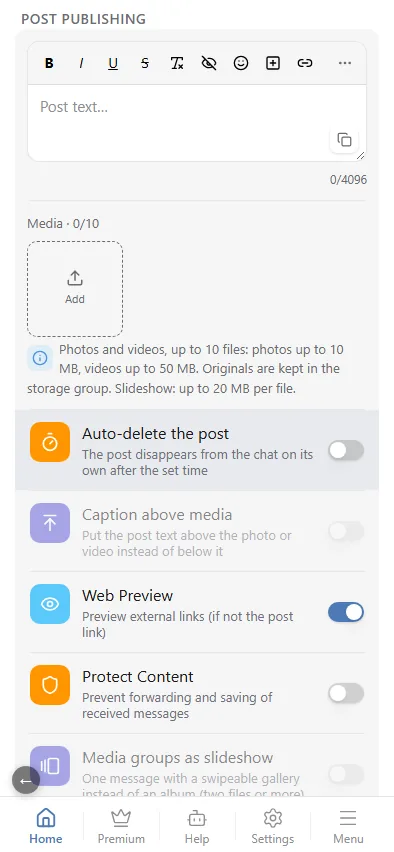
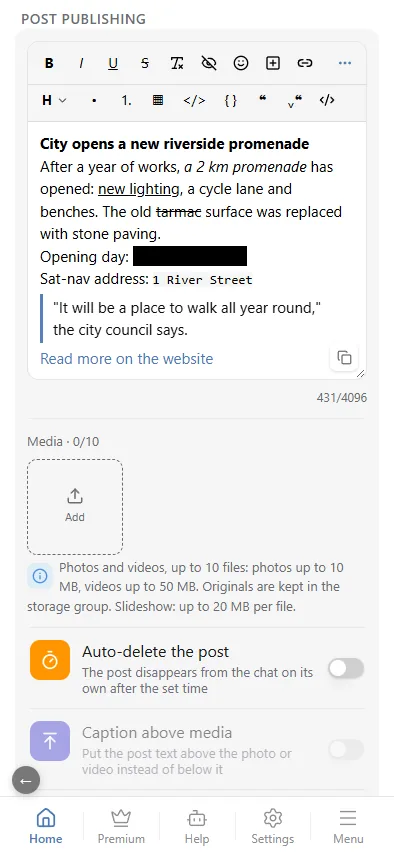
At the top is the text field with its formatting bar: bold, italic, underline, strikethrough, clear formatting, hidden text (spoiler), emoji (including custom ones), a button under the post, and a link. The ··· icon unfolds the second row: headings, lists, a table, inline code and a code block, a quote and an expandable quote, plus the HTML switch that shows and edits the raw markup.
Formatting combines: select the text and press several buttons in a row to get bold italic. The clear button strips all formatting from the selection.
The counter on the right counts up to 4096 characters — that is what Telegram accepts in a text message. A post with media has a different limit, 1024 characters of caption, and anything beyond it is trimmed on sending. Headings, lists and tables cannot travel with media at all — the editor says so when you publish.
Media
Add attaches up to 10 files: photos up to 10 MB, videos up to 50 MB. A slideshow is stricter — up to 20 MB per file. Originals are kept in a service group, so a post can sit in the schedule and go out days later.
Every tile does two things: the cross removes the file, the eye puts a spoiler on that single file.
Post options
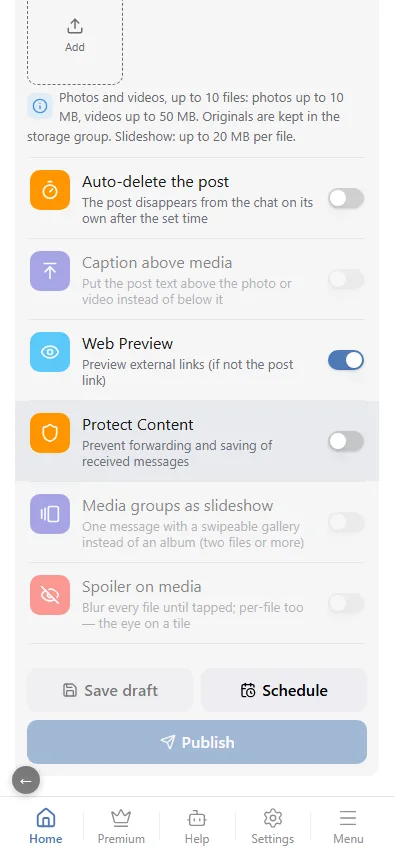
The toggles under the media are the same ones as in Message content, but they apply to this post only. They start from the chat settings and never write back to them: a spoiler switched on here will not switch on for posts from sources. Your last choice is remembered and pre-filled the next time you open the editor.
- Auto-delete the post — the post disappears from the chat on its own (see below).
- Caption above media — the text goes above the photo or video instead of below.
- Web Preview — link previews in a post without media.
- Protect Content — forbid forwarding and saving the message.
- Media groups as slideshow — one message with a swipeable gallery instead of an album, from two files up.
- Spoiler on media — blur every file until tapped.
Auto-delete and Schedule (further down) need a paid plan: without one, turning either on shows a dismissible "Available only with a premium plan" notice instead.
Auto-delete
Switch the toggle on and a Settings row appears with two modes:
- Delete after — a delay counted from publication: minutes, hours or days. The countdown starts when the post actually reaches the chat, not when you scheduled it.
- Exact date and time — a single field with a calendar and a clock; past dates cannot be picked.
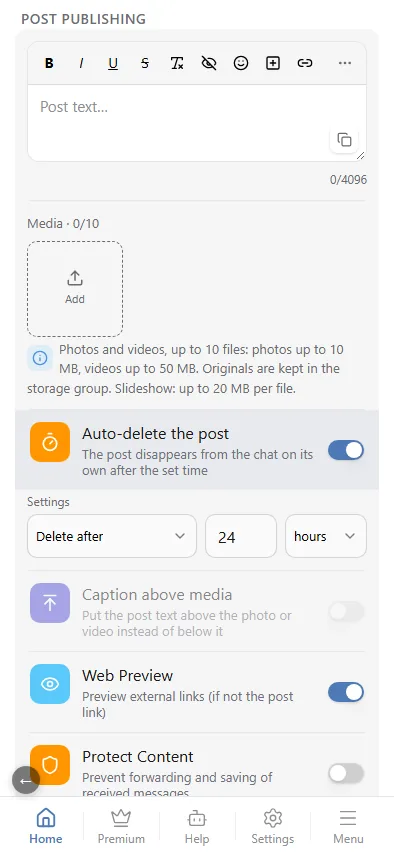
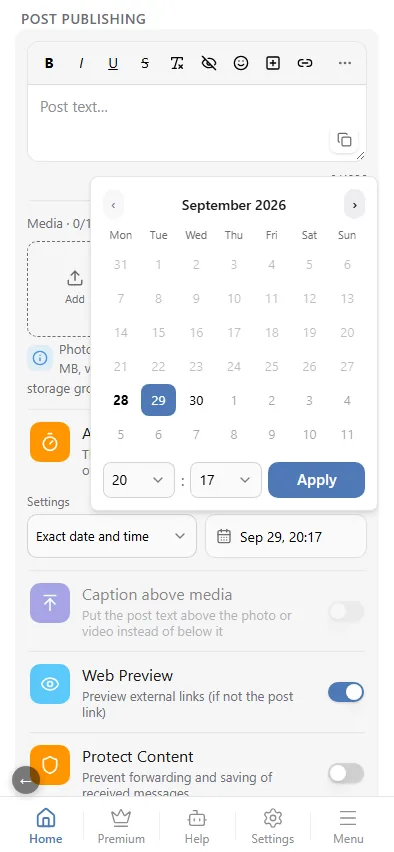
The deletion is done by the same bot that published the post, so it must keep the right to delete messages in the chat. If the message was already removed by hand, that is not an error — the job is still marked done. A post with auto-delete carries a note with its deadline in the calendar and in the list.
Telegram refuses to delete very old messages. If the deadline did not fire, the post stays in the chat and the queue row gets an error mark — there are no retries.
Drafts
Save draft stores the post without sending it. Drafts appear in their own section under the editor: tapping one loads it back into the editor, the bin deletes it. A draft lives in the chat's queue and is available to everyone who can reach its settings.
Publishing and scheduling
Three buttons at the bottom:
- Publish — send the post to the chat right now, with a confirmation.
- Save draft — keep it and come back later.
- Schedule — a toggle: it reveals the Publish date and time field and renames the main button to Add to publishing queue. The post goes out at the chosen moment; the queue is checked once a minute, so a delay of up to a minute is normal.
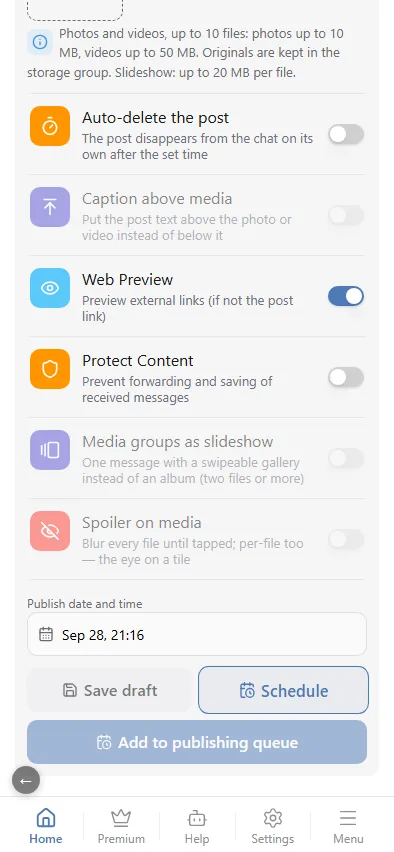
Date and time are in the chat's time zone (Settings → Time zone). A moment in the past cannot be picked.
A scheduled post waits its turn in Schedule and queue, where it can be moved to another day, opened back in the editor or deleted.
Schedule and queue
Everything pending lives in one section. Both your own posts, scheduled in Post publishing, and source posts awaiting a decision with deferred posting on end up here.
The Schedule and queue entry shows up in the Management block on its own as soon as the chat's queue holds at least one post, and it carries a counter. An empty queue, no entry.
Three blocks
The schedule screen stacks three sections, top to bottom — not a switch between two views of one list:
- Moderation — source posts awaiting a decision; hidden once nothing is waiting.
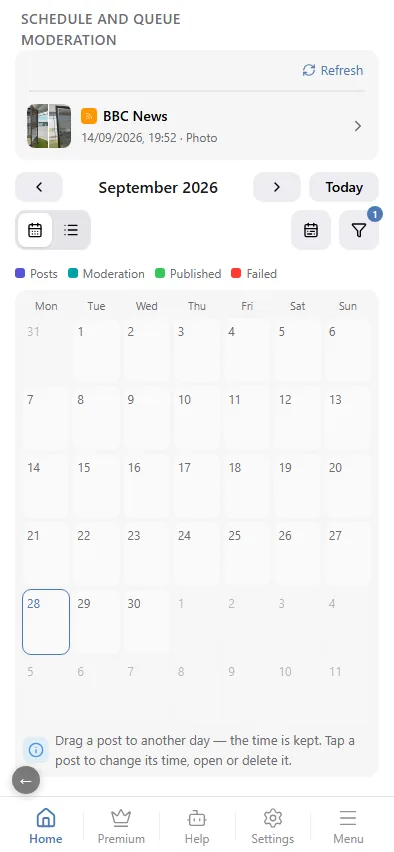
- Calendar — everything with a publish time, below.
- Moderating posts without auto-publish — due, publishing or failed rows that need no decision but are not moving on their own; hidden once empty.
Calendar
A month with posts on their days; Today jumps back to the current month. A post can be dragged to another day — the time is kept. Tapping a post opens a menu:
- Move — change the date and time;
- Open in editor — your own posts only;
- Delete — drop it from the schedule.
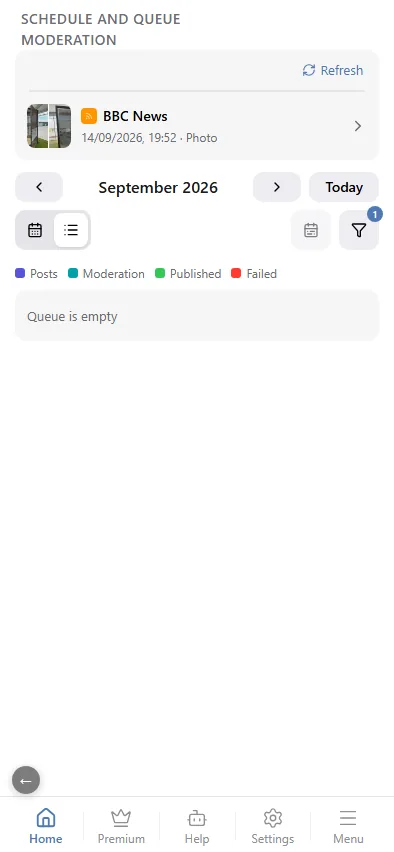
The icon next to Today switches between this grid and a flat list of the same posts — pick whichever reads better when there are few posts scattered across the month.
The filter icon opens a set of checkboxes, any combination at once: Manual posts, Moderation posts, Failed and Published. Published is unchecked by default, so the grid shows only what is still ahead.
Statuses
| Status | What it means |
|---|---|
| Draft | saved in the editor, going nowhere |
| Scheduled | waiting for its moment |
| Publishing | being sent right now |
| Published | already in the chat |
| Publish failed | sending failed; the reason is on the row |
A post with auto-delete carries a mark with its deadline: before publication, how long it will live; after it, the date it disappears from the chat.
What is edited where
The queue is shared, but the posts in it come from different places:
| Your post | Source post | |
|---|---|---|
| Comes from | the mini app editor | a source |
| Enters the queue when | you press "Schedule" | deferred posting is on |
| Editing | "Open in editor" | in the moderation chat |
| Filters, replacements, template | not applied | fully applied |
A source post can be published or deleted from this section, but not rewritten: its text is edited in the moderation chat — and without a moderation chat of your own, not at all.