 Aximo
Aximo en
en Русский
Logo removal
Erase a source's logo or caption from every incoming photo — anywhere in the frame and at any size.
Sources often stamp their logo or caption on photos — in one corner or another, larger or smaller. Logo Removal finds that logo on every incoming photo of the source and erases it, redrawing the background underneath. Available on the Ultra plan and above.
Setting it up
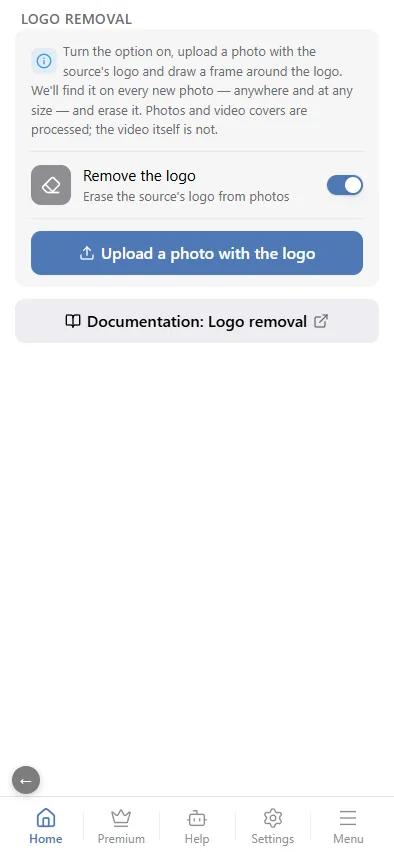
- Switch on Remove the logo and tap Upload a photo with the logo — pick a photo from this source where the logo is clearly visible.
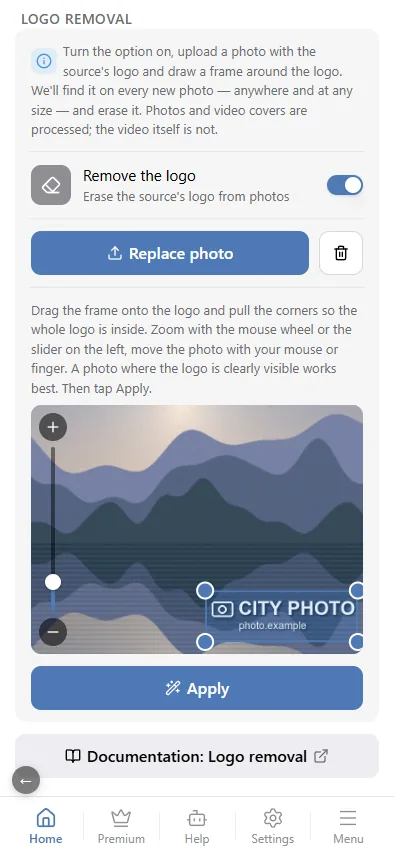
- Drag the frame onto the logo and pull the corners so the whole logo is inside; a small margin is fine. A small logo is easier to frame zoomed in: the mouse wheel, the slider on the left or the + / − buttons. Drag the photo itself with your mouse or finger to move it.
- Tap Apply — the server removes the logo from that photo, usually in a few seconds. A spinner turns on the button meanwhile.
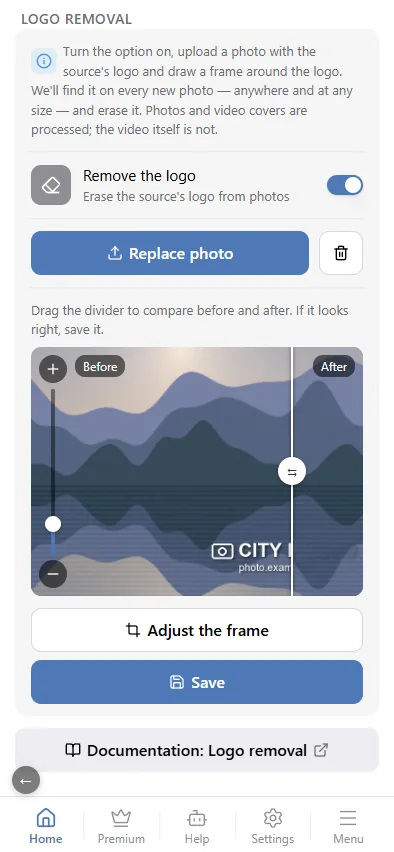
- A Before / After divider appears: drag it to compare. If the logo is gone cleanly, tap Save; if not, tap Adjust the frame and draw it more precisely.
How it works
Once saved, the logo is searched for on every new photo of the source — anywhere in the frame and at any size — while the photos' own captions and signs are left alone. Photos and video covers are processed; the video itself is not.
Saved samples are listed under Saved logo examples. If the source's logo varies (light and dark, different text), add another example — up to three; remove one with the bin next to it.
Logo removal is per source only: each source has its own logo. The source's logo is erased first, then your watermark is applied, so your mark is never erased.