 Aximo
Aximo en
en Русский
Message filtering
Which posts are not delivered: the content filter, the keyword filter with regular expressions, import and export of rules.
Message Filtering decides which posts are not delivered. It exists for the chat and for every source; a source can either override the chat's filters or add to them (the Mode switch at the top of the source section — Replace or Add to, see Managing sources).
The blocks of the screen, top to bottom:
- Filter by Content and Keyword filter — on this page;
- Similarity Filter — Similar posts, chat only;
- Time filter — Time filter;
- Chat for filtered messages — Chat for filtered messages, chat only.
Publishing by views, likes, reactions, comments and reposts is a separate source section: Delayed filters.
Filtering by meaning — ads, off-topic posts — is done by the model: see AI filters. Filtered posts show up in the events log with the reason.
Filter by content
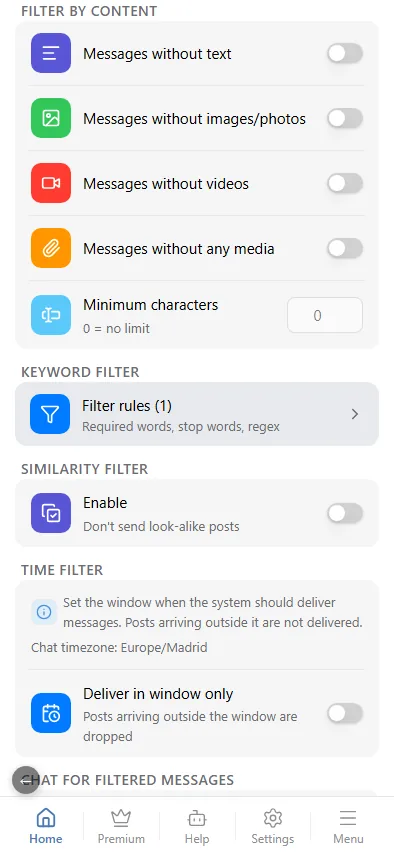
Quick switches that drop whole classes of posts:
- messages without text;
- messages without images;
- messages without videos;
- messages without any media;
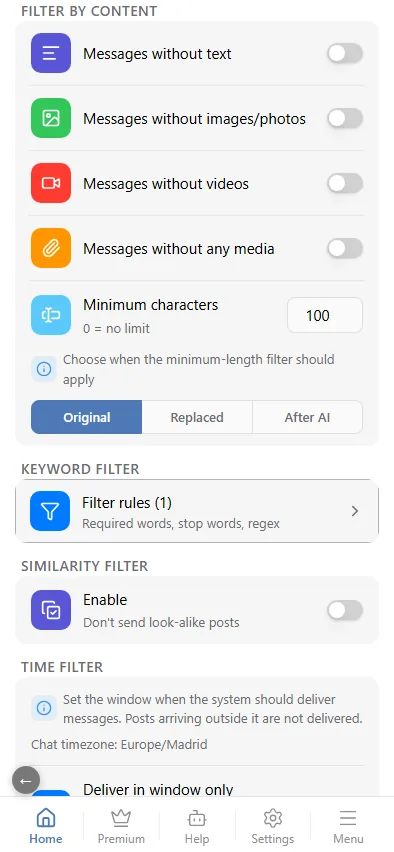
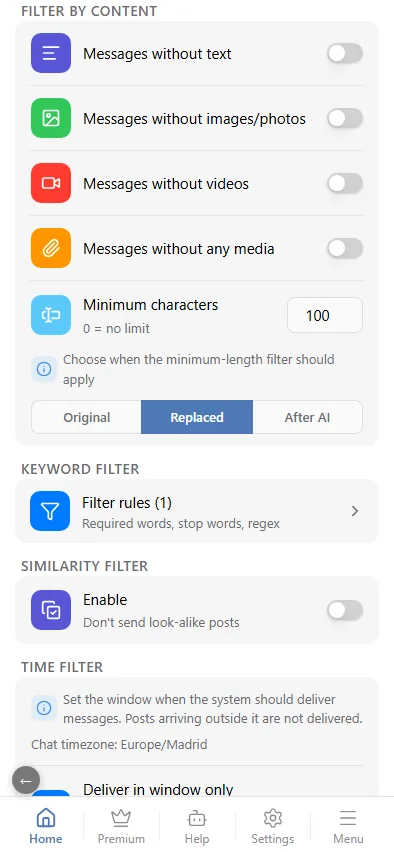
- messages shorter than a minimum number of characters (0 = no limit);
The minimum-length switch has a second step: once the number is above zero, the mini app asks at which stage to measure the length — the original text, the text after replacements, or after AI processing.
Keyword filter
In the Keyword filter block, the Filter rules row opens the rule editor. Two kinds of rule:
- Required words — the post is forwarded only if it contains at least one of them. Use them to follow one topic in a busy source.
- Stop words — a post containing any of them is never forwarded.
Adding a rule, step by step:
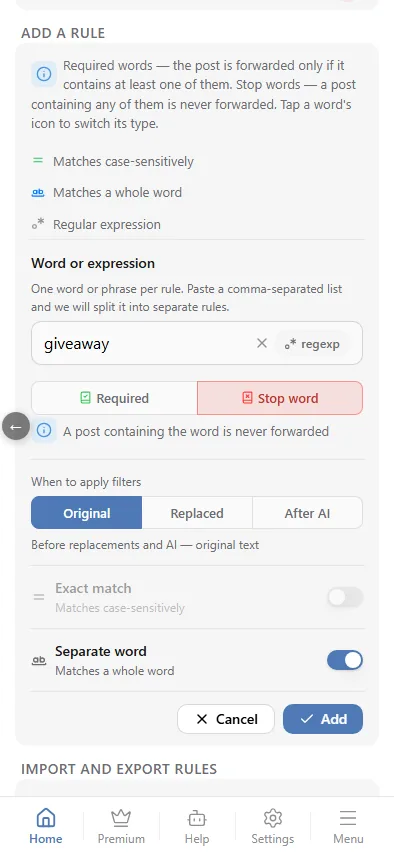
Each rule has options:
- Exact match — case-sensitive.
- Separate word — matches a whole word, so
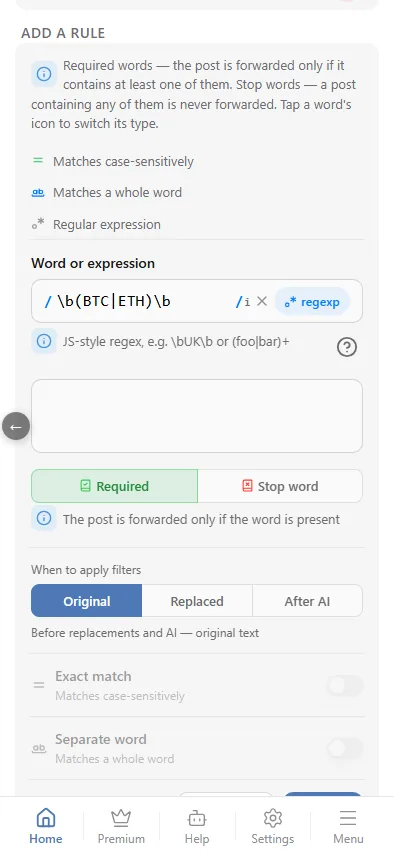
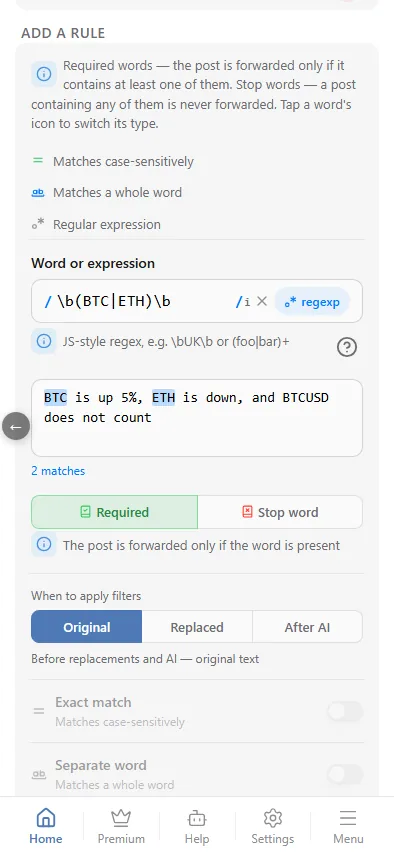
artdoes not matchstart. - Regular expression — the pattern is a JavaScript regular expression, for example
\b(BTC|ETH)\borprice[:\s]+\d+. Turning it on reveals a test box right under the field: paste a sample post and every match is highlighted, with a count underneath. The pattern runs with the same flags delivery uses — case-insensitive, nogorm, so^/$mean the start/end of the whole text. The ? button next to the field opens a cheat sheet of common patterns (.,\d,\w,\b,[abc], …) — tap one to insert it. Note that\wand\bonly recognize Latin letters, so they miss Cyrillic text; use[а-яёA-Za-z0-9_]or\p{L}instead. - When to apply — Original (right after reception, on the source text), Replaced — on the text after replacements, or After AI — after the model has processed it. Choose the stage the words are guaranteed to be in; where these stages sit on a post's path — see A post's path. The "After AI" stage also catches markers the model appends — that is how AI filters work.
Rules are checked in order; a post must pass every stop rule and at least one required rule (if any required rules exist).
How the rules screen works:
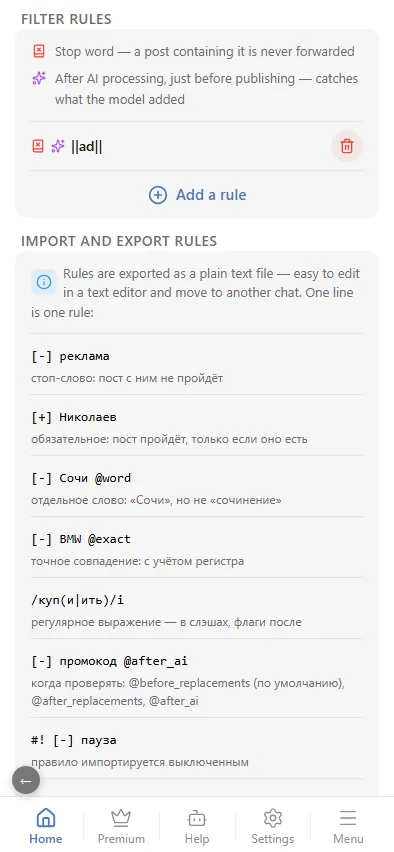
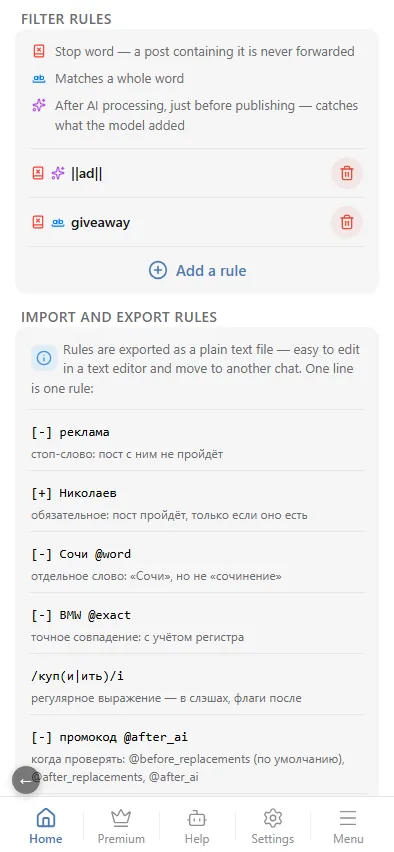
- A legend at the top of the card explains the icons — only the ones your rules actually use: stop word, required word, exact match, whole word, regular expression, and the "after replacements" and "after AI" stages.
- 10 rules per page — with more, page numbers appear under the list.
- Tap a rule to change it: the row turns into the same form with Cancel and Save.
- Add a rule under the list opens the add form; while there are no rules, the card says "No rules yet" and shows the same button. Opening the form closes a rule edit in progress without saving, and the other way round.
- A list in one go — type several words separated by commas and the form offers Split into N rules: one rule per word, with the same options.
Import and export of rules
At the bottom of "Filter rules" — Download rules and Load from file. Rules are exported as a plain text file: easy to edit in a text editor and move to another chat or source. One line is one rule:
| Line | Meaning |
|---|---|
[-] ads | stop word: a post with it does not pass |
[+] Nikolaev | required: a post passes only if it contains it |
[-] Sochi @word | whole word only: "Sochi", but not "Sochinenie" |
[-] BMW @exact | exact match: case-sensitive |
/bu(y|ying)/i | regular expression — in slashes, flags after |
[-] promo @after_ai | when to check: @before_replacements (default), @after_replacements, @after_ai |
#! [-] pause | the rule is imported switched off |
# note | comment, skipped on import |
Sample file shows such a template in full. On load the mini app first shows how many rules it found in the file and asks whether to add them to the existing ones or replace all; rules you already have are not duplicated, lines it cannot read are skipped with their line number.