 Aximo
Aximo en
en Русский
Time filter
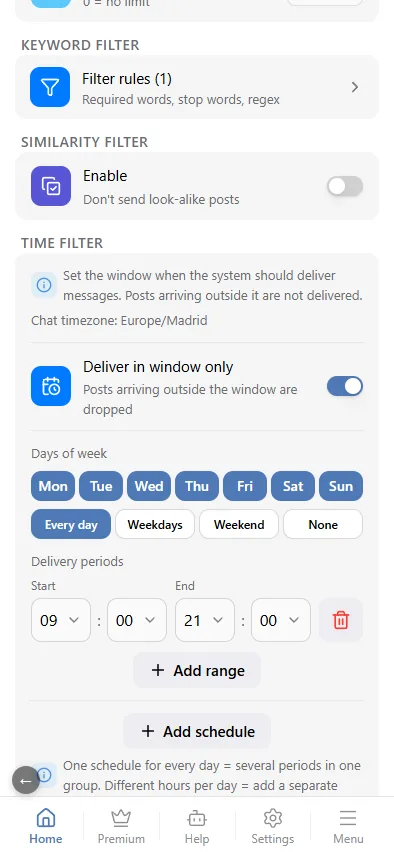
Deliver only inside chosen hours: per-day schedules with several periods, in the chat's own time zone; posts outside the window are logged as filtered.
The time filter is part of Message filtering and works for the chat and for a single source. Posts that arrive outside the window are not delivered; they appear in the delivery log as filtered with the reason "outside the delivery window".
Setting it up
- Open the chat (or a source) → Message Filtering → Time filter.
- Switch on Deliver in window only. A first schedule appears at once: every day, 09:00–21:00.
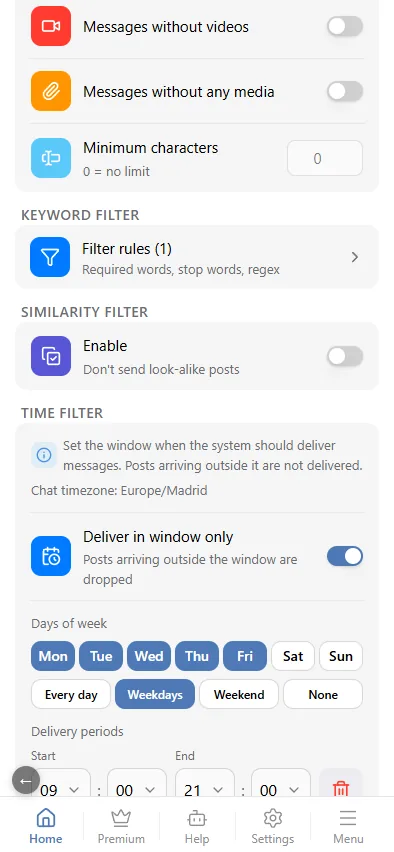
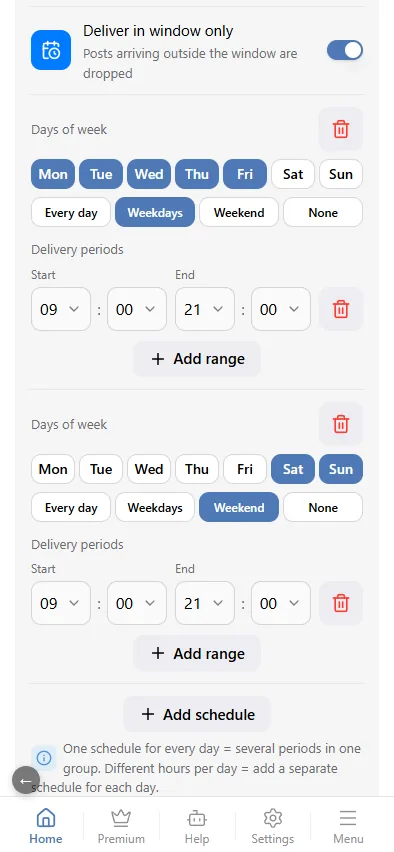
- Adjust the days of week; the shortcuts Every day, Weekdays, Weekend and None save taps. A new schedule already carries a 09:00–21:00 period; if you delete every period, picking a day fills in 00:00–23:59. Add schedule adds another schedule.
- Add one or more delivery periods — start and end time — for those days; any period can be deleted, including the last one.
- Need different hours on different days? Press Add schedule again and configure another group of days with its own periods.
None, or clearing every day of a schedule, turns that schedule's window off — it does not mean "every day".
The times are in the chat's time zone, shown at the top of the block and set in Settings → Timezone.
When to use it
- A personal feed that should stay quiet at night.
- A channel whose audience is in one time zone: no posts at 4 a.m.
- Weekend-only digests.
To queue posts instead of dropping them, use the publishing window of deferred posting — it also explains when this block is hidden.
A manual Send latest post ignores this window (and the deferred-posting window) — content filters still apply.